





Unlocking the Power of Computer Vision: Vision AI Made Easy with Spring Boot and Java

1186
Of your peers have already read this article.
1:30 Minutes
The most insightful time you'll spend today!
In today’s era of data-driven applications, leveraging advanced machine learning and artificial intelligence services like computer vision has become increasingly important. One such service is the Vision API, which provides powerful image analysis capabilities. In this blog, we will explore how to create a Computer Vision application using Spring Boot and Java, enabling you to unlock the potential of image recognition and analysis in your projects. The application UI will accept as input, public URLs of images that contain written or printed text, extract the text, detect the language and if it is one of the supported languages, it will generate the English translation of that text.
Spring Boot and Google Cloud
Spring Boot is a powerful open-source framework for creating Spring-based applications. It simplifies development by providing auto-configuration, starter dependencies, and embedded servers. It also offers production-ready features like metrics and health checks. With Spring Boot, you can focus on writing code and deploying efficient applications without worrying about complex configuration or dependencies. Apart from the well-known features that make it an ideal choice for enterprise apps, a new exciting development is the official support for Native Image Builder using GraalVM, enabling the creation of native standalone executables without the need for a Java Runtime and are leaner and offer a super fast startup experience. Try Spring Native on Google Cloud.
The Spring Cloud GCP library makes it easy for Spring Boot applications to use Google Cloud services. It provides Spring Boot APIs for over a dozen Google Cloud services. This means you can take advantage of the benefits of Google Cloud services without having to learn separate Google Cloud client libraries. It is very easy to migrate or create a new Spring Boot application in Google Cloud. With just one command, you can bootstrap your production-ready Spring Boot project structure and start making code changes for your requirement. Refer to the documentation for a full list of features.
Prerequisites
Before diving into the development process, make sure you have the following prerequisites in place:
- A Google Cloud account with a project created and billing enabled
- Vision API, Translation, Cloud Run, and Artifact Registry APIs enabled
- Cloud Shell activated
- Cloud Storage API enabled with a bucket created and images with text or handwriting in local supported languages uploaded (or you can use the sample image links provided in this blog)
Refer to the documentation for steps on how to enable Google Cloud APIs.
Bootstrapping a Spring Boot project
To get started, create a new Spring Boot project using your preferred IDE or Spring Initializr. Include the necessary dependencies, such as Spring Web, Spring Cloud GCP, and Vision AI, in your project’s configuration. Alternatively, you can use Spring Initializr from Cloud Shell using the below steps to bootstrap your Spring Boot application easily:
1. Open a Cloud Shell terminal and make sure it is pointing to the correct project and that you are authorized (if not you can use the command below to set the right project):
gcloud config set project <PROJECT_ID>
2. Run the following command to create your Spring Boot project:
curl https://start.spring.io/starter.tgz -d packaging=jar -d dependencies=cloud-gcp,web,lombok -d baseDir=spring-vision -d type=maven-project -d bootVersion=3.0.1.RELEASE | tar -xzvf -spring-vision is the name of your project, change it per your requirement.
bootVersion is the version of Spring Boot, make sure to update it if required at the time of your implementation.
type is the version of project build tool type, you can change it to gradle if preferred.
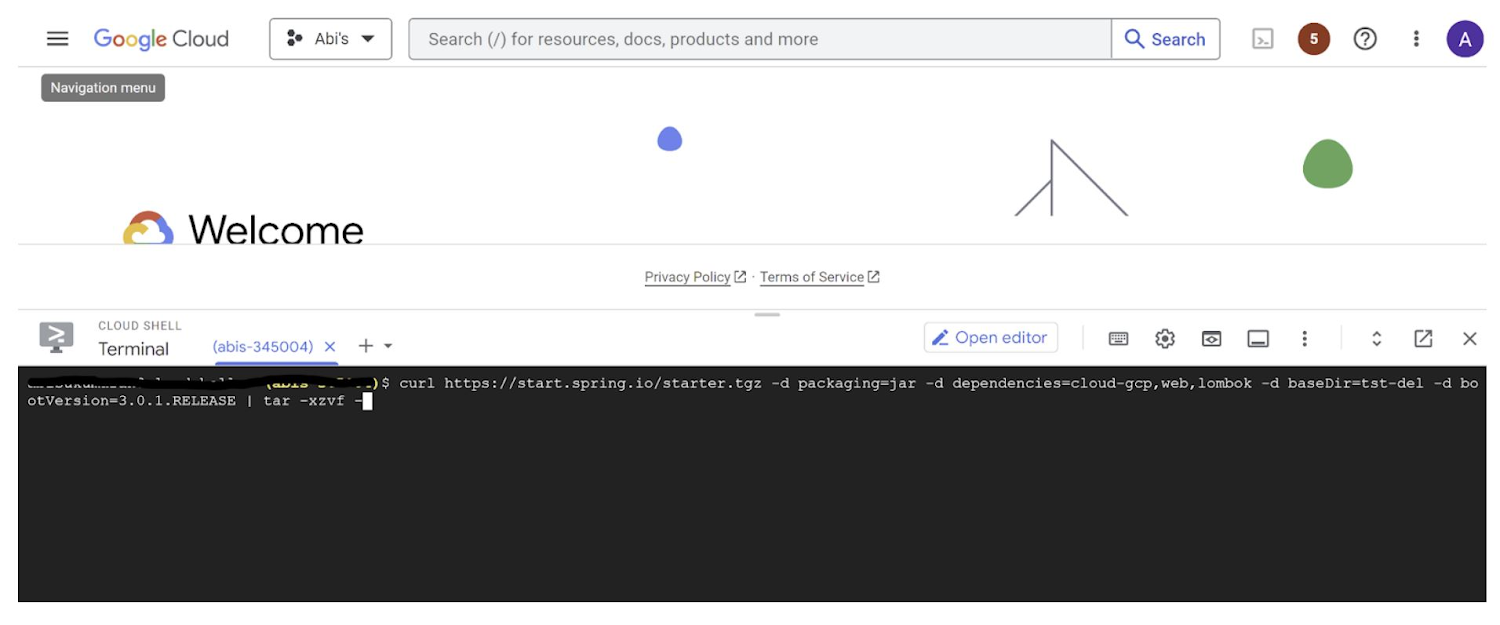
This creates a project structure under “spring-vision” as below:
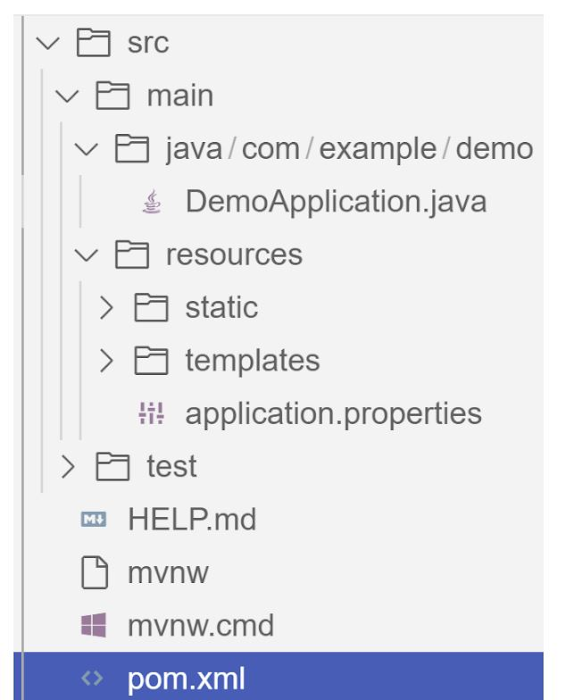
pom.xml contains all the dependencies for the project (dependencies you configured using this command are already added in your pom.xml).src/main/java/com/example/demo has the source classes .java files.resources contain the images, XML, text files and the static content the project uses that are maintained independently.application.properties enable you to maintain the admin features to define profile specific properties of the application.
Configuring the Vision API
Once you have the Vision API enabled, you have the option to configure the API credentials in your application. You can optionally use Application Default Credentials for setting up authentication. In this demo implementation however I have not implemented the use of credentials.
Implementing the vision and translation services
Create a service class that interacts with the Vision API. Inject the necessary dependencies and use the Vision API client to send image analysis requests. You can implement methods to perform tasks like image labeling, face detection, recognition, and more, based on your application’s requirements. In this demo, we will use handwriting extraction and translation methods. For this make sure you include the following dependencies in pom.xml
<dependency>
      <groupId>org.springframework.cloud</groupId>
      <artifactId>spring-cloud-gcp-starter-vision</artifactId>
</dependency>
<dependency>
<groupId>com.google.cloud</groupId>
<artifactId>google-cloud-translate</artifactId>
</dependency>Clone / Replace the following files from the repo and add them to the respective folders / path in the project structure:
Application.java(/src/main/java/com/example/demo)TranslateText.java(/src/main/java/com/example/demo)VisionController.java(/src/main/java/com/example/demo)index.html(/src/main/resources/static)result.html(/src/main/resources/templates)pom.xml
The method extractTextFromImage in the service org.springframework.cloud.gcp.vision.CloudVisionTemplate lets you extract text from your image input. The method getTranslatedText from the service com.google.cloud.translate.v3 lets you pass the extracted text from your image and get the translated text in the desired target language as response (if the source is in one of the supported languages list).
Building the REST API
Design and implement the REST endpoints that will expose the Vision API functionalities. Create controllers that handle incoming requests and utilize the Vision API service to process the images and return the analysis results.
In this demo, our VisionController class implements the endpoint, handles the incoming request, invokes the Vision API and Cloud Translation services and returns the result to the view layer. Implementation of the GET method for the REST endpoint is as follows:
@GetMapping("/extractText")
  public String extractText(String imageUrl) throws IOException {
    String textFromImage =
   this.cloudVisionTemplate.extractTextFromImage(this.resourceLoader.getResource(imageUrl));


    TranslateText translateText = new TranslateText();
    String result = translateText.translateText(textFromImage);
    return "Text from image translated: " + result;
  }
The TranslateText class in the above implementation has the method that invokes the Cloud Translation service:
String targetLanguage = "en";
 TranslateTextRequest request =
         TranslateTextRequest.newBuilder()
             .setParent(parent.toString())
             .setMimeType("text/plain")
             .setTargetLanguageCode(targetLanguage)
             .addContents(text)
             .build();
     TranslateTextResponse response = client.translateText(request);
     // Display the translation for each input text provided
     for (Translation translation : response.getTranslationsList()) {
       res = res + " ::: " + translation.getTranslatedText();
        System.out.printf("Translated text : %s\n", res);
     }
With the VisionController class, we have the GET method for the REST implemented.
Integrating Thymeleaf for frontend development
When building an application with Spring Boot, one popular choice for frontend development is to leverage the power of Thymeleaf. Thymeleaf is a server-side Java template engine that allows you to seamlessly integrate dynamic content into your HTML pages. Thymeleaf provides a smooth development experience by allowing you to create HTML templates with embedded server-side expressions. These expressions can be used to dynamically render data from your Spring Boot backend, making it easier to display the results of image analysis performed by the Vision API service.
To get started, ensure that you have the necessary dependencies for Thymeleaf in your Spring Boot project. You can include the Thymeleaf Starter dependency in your pom.xml:
<dependency>
<groupId>org.springframework.boot</groupId>
<artifactId>spring-boot-starter-thymeleaf</artifactId>
</dependency>
In your controller method, retrieve the analysis result from the Vision API service and add it to the model. The model represents the data that will be used by Thymeleaf to render the HTML template. Once the model is populated, return the name of the Thymeleaf template that you want to render. Thymeleaf will take care of processing the template, substituting the server-side expressions with the actual data, and generating the final HTML that will be sent to the client’s browser. Example:
return new ModelAndView("result", <<YOUR RESULT>>);In the case of the extractText method in VisionController, we have returned the result as a String to and not added to the model. But we have invoked the GET method extractText method on the index.html on page submit.
<form action="/extractText">

        Web URL of image to analyze:

        <input type="text"

               name="imageUrl"

               value=""

        <input type="submit" value="Read and Translate" />

</form>
With Thymeleaf, you can create a seamless user experience, where users can upload images, trigger Vision API analyses, and view the results in real-time. Unlock the full potential of your Vision AI application by harnessing the power of Thymeleaf for frontend development.
Deploying your Spring Boot application with Cloud Run
Write unit tests for your service and controller classes to ensure proper functionality under the /src/test/java/com/example folder. Once you’re confident in its stability, package it into a deployable artifact, such as a JAR file, and deploy it to Cloud Run, a serverless compute platform on Google Cloud. In this step, we will focus on deploying your containerized Spring Boot application using Cloud Run.
a. Package your application by executing the following steps from Cloud Shell(make sure the terminal is prompting at the project root folder)
Build:
./mvnw package
Once the build is successful, run locally to test:
./mvnw spring-boot:run
b. Containerize your Spring Boot Application with Jib:
Instead of manually creating a Dockerfile and building the container image, you can use the Jib utility to simplify the containerization process. Jib is a plugin that integrates directly with your build tool (such as Maven or Gradle) and allows you to build optimized container images without writing a Dockerfile. Before proceeding, you need to enable the Artifact Registry API (Use of Artifact Registry is encouraged over container registry). Then Run Jib to build a Docker image and publish to the Registry:
$ ./mvnw com.google.cloud.tools:jib-maven-plugin:3.1.1:build -Dimage=gcr.io/$GOOGLE_CLOUD_PROJECT/vision-jib
Note: In this experiment, we did not configure the Jib Maven plugin in pom.xml, but for advanced usage, it is possible to add it in pom.xml with more configuration options
c. Deploy the container (that we pushed to Artifact Registry in the previous step) to Cloud Run. This is again a one-command step:
gcloud run deploy vision-app --image gcr.io/$GOOGLE_CLOUD_PROJECT/vision-jib --platform managed --region us-central1 --allow-unauthenticated --update-env-vars
You can alternatively do this from the UI as well. Navigate to the Google Cloud Console and locate the Cloud Run service. Click on “Create Service” and follow the on-screen instructions. Specify the container image you previously pushed to the registry, configure the desired deployment settings (such as CPU allocation and autoscaling), and choose the appropriate region for deployment. You can set environment variables specific to your application. These variables can include authentication credentials (API keys etc.), database connection strings, or any other configuration needed for your Vision AI application to function correctly. When the deployment is completed successfully, you should get an endpoint to your application.
For our demo, the endpoint Cloud Run created for us is: https://vision-app-********-uc.a.run.app
Playing with your Vision AI app
For demo purposes, you can use the image URL below for your app to read and translate:
https://storage.googleapis.com/img_public_test/tamilwriting1.jfif
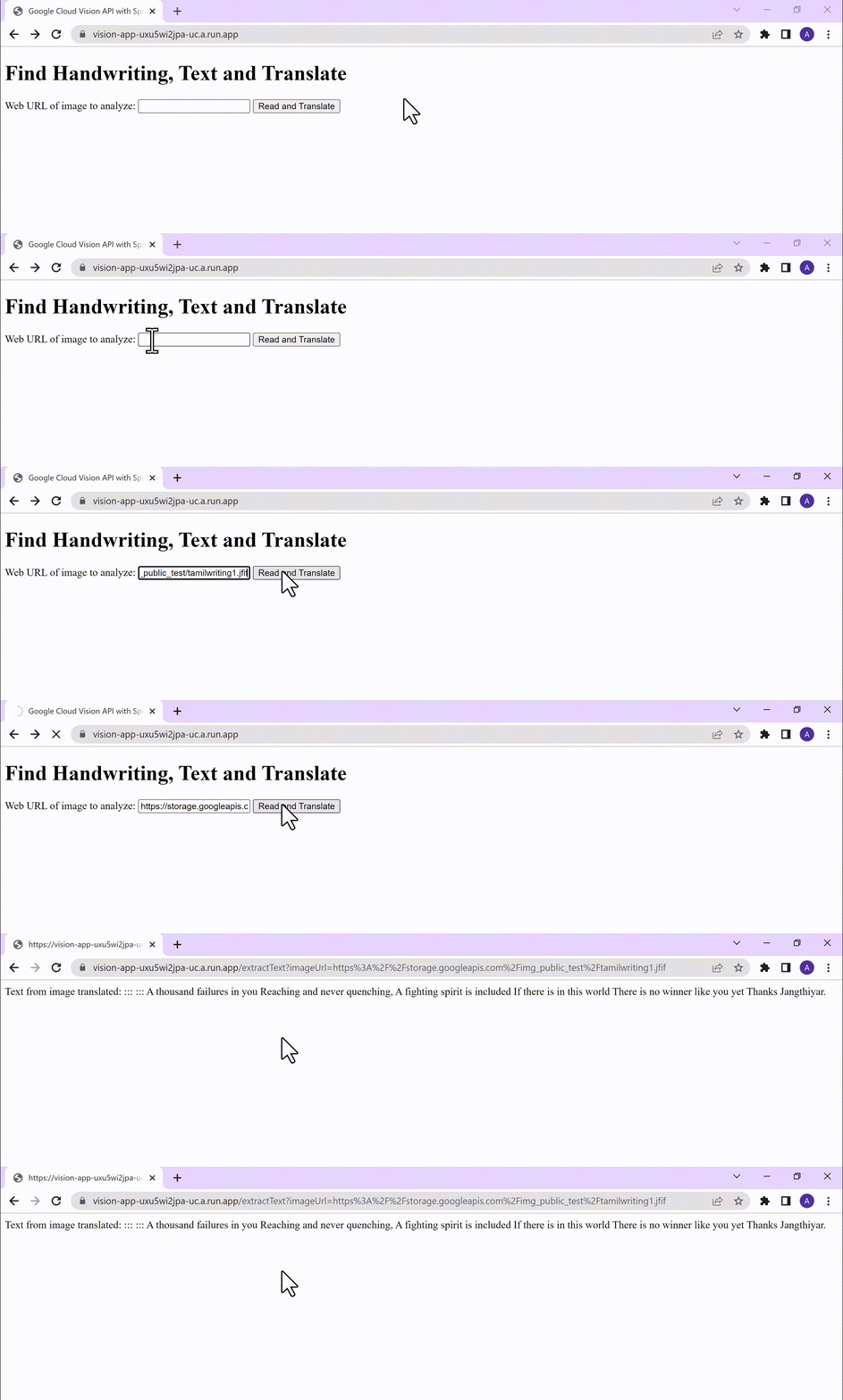
Conclusion
Congratulations! You have successfully created a Vision AI application using Spring Boot and Java. With the power of Vision AI, your application can now perform sophisticated image analysis, including labeling, face detection, and more. The integration of Spring Boot provides a solid foundation for building scalable and robust Google Cloud Native applications. Continue exploring the vast capabilities of Vision AI, Cloud Run, Cloud Translation and more to enhance your application with additional features and functionalities. To learn more, check out the Vision API, Cloud Translation, and GCP Spring docs. Try out the same experiment with the Spring Native option!! Also as a sneak-peak to Gen-AI world, checkout how this API shows up in Model Garden.
This Chart, from Home Depot, Dramatically Demonstrates the Power of a Cloud Data Warehouse
7588
Of your peers have already read this article.
2:30 Minutes
The most insightful time you'll spend today!
The Home Depot (THD) is the world’s largest home-improvement chain, growing to more than 2,200 stores and 700,000 products in four decades. Much of that success was driven through the analysis of data. This included developing sales forecasts, replenishing inventory through the supply chain network, and providing timely performance scorecards.
However, to compete in today’s business world, THD has taken this data-driven approach to an entirely new level of success on Google Cloud, providing capabilities not practical on legacy technologies.
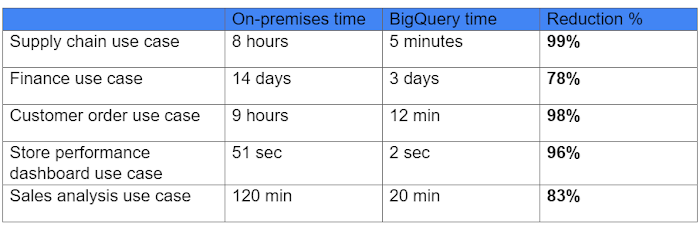
The pressures of contemporary growth that drove much of the work are familiar to many businesses. In addition to everything it was doing, THD needed to better integrate the complexities in its related businesses, like tool rental and home services. It needed to better empower teams, including a fast-growing data analysis staff and store associates with mobile computing devices. It wanted to better use online commerce and artificial intelligence to meet customer needs, while maintaining better security.
Even before addressing these new challenges, THD’s existing on-premises data warehouse was under stress as more data was required for analytics and data analysts were utilizing the data with increasingly complex use cases. This drove rapid growth of the data warehouse, but also created constant challenges for the team in managing priorities, performance, and cost.
In order to add capacity to the environment, it was a major planning, architecture, and testing effort. In one case, adding on-premises capacity took six months of planning and a three-day service outage. Within a year, capacity was again scarce, impacting performance and ability to execute all the reporting and analytics workloads required. The capacity refresh cycles were shrinking, and the expecations for data were growing. There had to be a better way.
Still, THD did not take its move to the cloud lightly. A large-scale enterprise data warehouse migration involves tremendous effort among people, process, and technology. After careful consideration, THD chose Google Cloud’s BigQuery for its cloud enterprise data warehouse.
BigQuery, a scalable serverless data warehouse, was better on cost, infrastructure agility, and analytics capability, driving better insights with improved performance. There are no service interruptions when capacity is added, and that capacity can be added within a week (and soon same day). It doesn’t require complex system administration, and its standard SQL support means people can easily ramp up quickly. Valuable BigQuery products like Identity and Access Management meant THD could create many separate Google Cloud projects, while ensuring that different teams weren’t interfering with each other or accessing protected data.
THD also utilizes BigQuery’s flat-rate monthly pricing model that allows teams to budget their capacity based on need and provides billing predictability. The capacity not being used by a given project is available for enterprise use. This ensures no surprises when the monthly bill arrives and provides all analytical users access to significant computing power.
While THD’s legacy data warehouse contained 450 terabytes of data, the BigQuery enterprise data warehouse has over 15 petabytes. That means better decision-making by utilizing new datasets like website clickstream data and by analyzing additional years of data.
As for performance, look at this chart:
With the cloud EDW migration complete, and the legacy on-premises data warehouse retired, analysts now execute more complex and demanding workloads that they would not have been able to complete before, such as utilizing Datalab for orchestrating analytics through Python Notebooks, utilizing BigQuery ML for machine learning directly against the BigQuery data (no movement of large datasets), and AutoML to help determine the best model for predictions.
Additionally, engineers at THD have adapted BigQuery to monitor, analyze, and act on application performance data across all its stores and warehouses in real time, something that was not practical in the on-premises system.
With over 600 projects that THD now has on Google Cloud, the BigQuery story is just one of the many ways that Google Cloud is working with THD to deliver meaningful business results, every day.
Google Cloud Platform Gives Us 5x the Processing Power to Analyze Physician Performance at 75% Lower Cost

6713
Of your peers have already read this article.
6:30 Minutes
The most insightful time you'll spend today!
Patients about to undergo a healthcare procedure understandably want the best medical professionals they can get. But how can they know which doctors have had the most experience and the best outcomes with that particular procedure? How can they make an informed decision about which doctor to select when the information they have is limited to the doctor’s practice area and subjective reviews from other patients?
MD Insider is working to solve that problem using machine learning (ML) to objectively analyze doctor performance. By analyzing data from thousands of institutions and millions of doctor-patient interactions and medical events, MD Insider identifies physician performance insights based on their experience and outcomes. Insights are then integrated into a triage engine, that enables consumers to search for and schedule appointments with providers who meet their clinical criteria and convenience preferences, such as insurances accepted, office hours, locations, and language.
MD Insider also offers robust data APIs to help health systems, health plans, and employers reduce costs and improve quality of care. Payers use the APIs to curate high-quality provider networks and manage provider directories. Examples of MD Insider’s data APIs include Provider Experience and Share of Practice metrics, Provider Quality and Outcomes, Network Modeling, Expert Clinical Search Taxonomy, Find a Provider, Acute-Care Hospital Quality, and Provider and Facility Metadata.
“We use Google Cloud Platform the way the cloud was supposed to be used. By comparison, other cloud providers feel like you’re renting somebody else’s data center.”
—Ed Holsinger, Lead Data Engineer and Head of Data Science, MD Insider
MD Insider is continuously ingesting the latest performance data about physicians and analyzing billions of rows of data. Requiring constant scalability, the company was born in the cloud; however, it had difficulty configuring server instances for the optimal balance of memory and CPU, and its Hadoop cluster had to be kept running 24/7. Network performance was often slow for no apparent reason. As a result, failure rates from node timeouts increased, and costs grew along with the data. MD Insider had to estimate its usage and pay up front, and received little financial benefit from sustained use commitments.
Knowing that data would continue to grow, MD Insider decided to move its data services — the most demanding and complex portion of its infrastructure — to Google Cloud Platform (GCP), and took advantage of GCP managed services for container management and big data analytics.
“One of the reasons we decided to move to Google Cloud Platform is because it feels like a unified, well-designed cloud architecture and pricing model,” says Ed Holsinger, Lead Data Engineer and Head of Data Science at MD Insider. “We use Google Cloud Platform the way the cloud was supposed to be used. By comparison, other cloud providers feel like you’re renting somebody else’s data center.”
“Moving to Google Cloud Platform and using Kubernetes Engine gave us 5x the processing power for analyzing physician performance at 75% less cost. Our data scientists have more power than ever before to generate insights for our customers.”
—Ed Holsinger, Lead Data Engineer and Head of Data Science, MD Insider
5x the performance, 75% less cost
MD Insider now uses Kubernetes Engine to automate container management and deploy clusters in minutes with just a few clicks. When hundreds of machines are required to analyze a large dataset, automation in Kubernetes Engine deploys ML models as containers, each of which manages the full lifecycle of its task, including scaling up resources, deploying results, and scaling back down when the task is finished. It’s easy for MD Insider to specify exactly how much CPU and memory each container needs, helping maximize performance while reducing costs.
“Moving to Google Cloud Platform and Kubernetes Engine gave us 5x the processing power for analyzing physician performance at 75% less cost,” says Ed. “Our data scientists have more power than ever before to generate insights for our customers. Data scoring jobs that used to take three business days now take four hours.”
Adds Galen Meurer, Senior Software Engineer at MD Insider: “Even if all Google Cloud Platform had to offer was Kubernetes Engine, I would still want to use it. Previously we spent up to 30% of our time managing our container infrastructure, which we can now use for product development.”
A foundation for data science
MD Insider was happy to find that GCP offers a wide variety of managed services. For example, the company is supplementing its Kubernetes Engine clusters with BigQuery for its big data masters and selection jobs, enabling scientists to analyze new and different types of data as well as analyze larger datasets in less time. MD Insider also uses Cloud Storage for big data staging and Cloud Dataproc to run managed Apache Spark clusters for data processing.
“Google Cloud Platform gives us an incredibly powerful cloud architecture for data engineering and data science,” says Eric Wilson, CEO of MD Insider. “That gives our scientists independence, they can do what they need to do without waiting and with no contention between them.”
A developer-friendly platform
Migrating its data services was such a success that MD Insider decided to move the rest of its infrastructure to GCP, including the front end for its web application. Since the migration, MD Insider has experienced no unplanned downtime on GCP, allowing it to easily meet the 99.5% uptime SLA it promises to customers. It’s also taking advantage of Build Triggers in Kubernetes Engine to automate container builds and reduce build times by more than 40%. Production code can be updated in seconds, with no impact to end users other than making new features available.
“GCP has simplified our workflow in so many ways, from intelligent load balancing to content delivery and automating builds,” says Matthew Frey, Software Engineer. “Everything on GCP is cohesive and developer friendly, with a superior UI and better network performance than other cloud providers.”
Ryan Beaini, Senior Software Engineer at MD Insider, agrees: “Since we moved to GCP, our developers are definitely happier. The pain and the headaches we experienced because of the limitations of our previous toolset all went away.”
“We’re a small company, but what we’re doing is incredibly important. We’re helping people make decisions about healthcare providers that could impact their lives and even be life-saving. Google Cloud Platform is helping us make our mission bigger, better, and brighter.”
—Eric Wilson, CEO, MD Insider
Securing billions of rows of clinical and non-clinical healthcare data
As a healthcare technology company, MD Insider processes billions of rows of clinical and non-clinical healthcare data. To control user access to GCP, it uses Identity & Access Management (IAM) along with Yubico YubiKeys for hardware-based two-factor authentication when logging into Google Workspace. MD Insider takes comfort that GCP encrypts data at rest by default, and encrypts and authenticates data in transit when data moves outside physical boundaries not controlled by Google or on behalf of Google.
“On GCP, everything that we need to be encrypted for compliance purposes is encrypted, which is fantastic,” says Eric. “When I tell our potential clients and partners about the resources that Google has dedicated to security, it gives them the confidence that their data will be protected.”
Transforming how teams work
As a growing company, MD Insider must collaborate seamlessly between offices in California, Colorado, and Illinois. It relies on Google Workspace for communication and productivity, using Docs, Sheets, and Slides to drive the business. Employee and team files are stored in Drive, and meetings are conducted via Google Meet with Chromebox for Meetings videoconferencing hardware kits. Google Workspace also helps MD Insider maintain information security by authenticating email domains with digital signatures in Gmail and scanning outgoing email using Gmail Data Loss Prevention (DLP).
“I use Google Workspace every day, and everyone else here does too,” says Eric. “Team Drives are a big time saver for us. We’ve let our previous office software expire, because there’s no need to pay for those licenses anymore.”
Promoting healthcare transparency
With GCP helping MD Insider increase velocity and momentum, the company is making exciting progress. For example, it has entered into a strategic partnership with Zelis Healthcare, which will use MD Insider’s API to provide insights for a next-gen analytics platform that will give health plans unprecedented transparency around physician performance.
“We’re a small company, but what we’re doing is incredibly important,” says Eric. “We’re helping people make decisions about healthcare providers that could impact their lives and even be life-saving. Google Cloud Platform is helping us make our mission bigger, better, and brighter.”
*Google Workspace was formerly known as G Suite prior to Oct. 6, 2020.
ML Models Built on Google Cloud Solutions Help You Virtually Participate in National Muffin Day!

2947
Of your peers have already read this article.
2:00 Minutes
The most insightful time you'll spend today!
If you’re here you’re probably wondering: what on Earth is the connection between muffins and machine learning, and what is National Muffin Day? To understand this, let’s start with National Muffin Day: an annual holiday co-founded by Jacob and his friend Julia Levy in 2015 to bake muffins and raise money for homelessness. National Muffin Day will occur on Sunday, February 20 this year. For more information on how to participate in National Muffin Day (which involves delicious baked goods and donations to people in need), please see the information at the bottom of this post. Last year, a colleague connected Jacob with Sara, who had done several baking projects that used machine learning to generate new recipes. They decided to collaborate for this year’s National Muffin Day, adding a new muffin recipe created with the help of machine learning.
In this post, we’ll explain how Sara used Google Cloud to develop a new muffin recipe, show you how you can participate virtually in National Muffin Day, and of course—share the recipe.
Machine learning for muffins
At its core, machine learning is the process of finding patterns in data and using those patterns to make predictions on new data. After a lot of baking over the past few years, Sara learned that baking is also based on patterns. For example, the ratio of flour, fat, liquid, and sugar that make up a cookie is very different from the ratio of those ingredients for a bread, a pie crust, or a muffin. She used that discovery to create a recipe for a hybrid cake + cookie, and a cake filled with Maltesers. Next up: muffins!
The first step was figuring out how to translate the task of generating a new muffin recipe into a machine learning task. To solve this, she planned to use numerical data on the amounts of different ingredients in a muffin recipe to train the model. Sara considered two types of models for this task: classification and regression. A classification model would categorize muffin recipes into different muffin types based on their ingredient amounts, and a regression model would do the reverse: take a type of muffin and return the amount of each ingredient needed to make it. She decided to build a regression model, since it would be more fun for the model to return ingredient amounts, rather than tell you which type of muffin recipe you’re already making.
Implementing this first required identifying a few muffin categories and collecting recipe data. This presented a new challenge, since her previous baking models used categories for distinct baked goods (i.e. cakes, cookies, breads). After scouring through quite a few recipes, Sara discovered that many muffins fall into two types: those that use only traditional ingredients as their base (flour, sugar, butter, milk, etc.), and those that include an alternative ingredient, most commonly a pureed fruit, to make the base (like bananas, applesauce, or pumpkin). Using those two categories, the model would take the type of muffin as input and return the amounts of base ingredients required to make that recipe. Here, the inputs can be any values adding up to 100%:
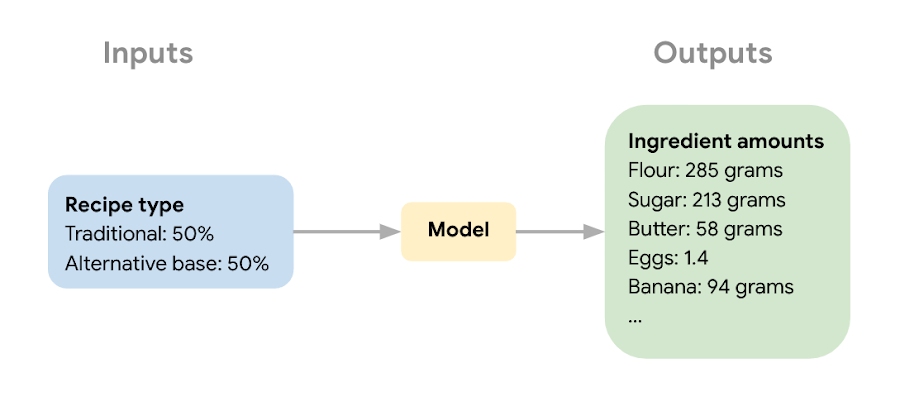
The next step in the ML process was collecting recipe data to use for model training and narrowing down the ingredients used to train the model. Sara wanted the model to learn the combination of core ingredients that make up a muffin batter, rather than flavorings and additions like blueberries, vanilla extract, or chocolate chips. These tasty additions could be added after the model helped create the muffin batter. Once she gathered enough recipes, she removed extra ingredients for training purposes and converted ingredients from different recipes into the same unit (grams, milliliters, and teaspoons).
Building a muffin model with Vertex AI
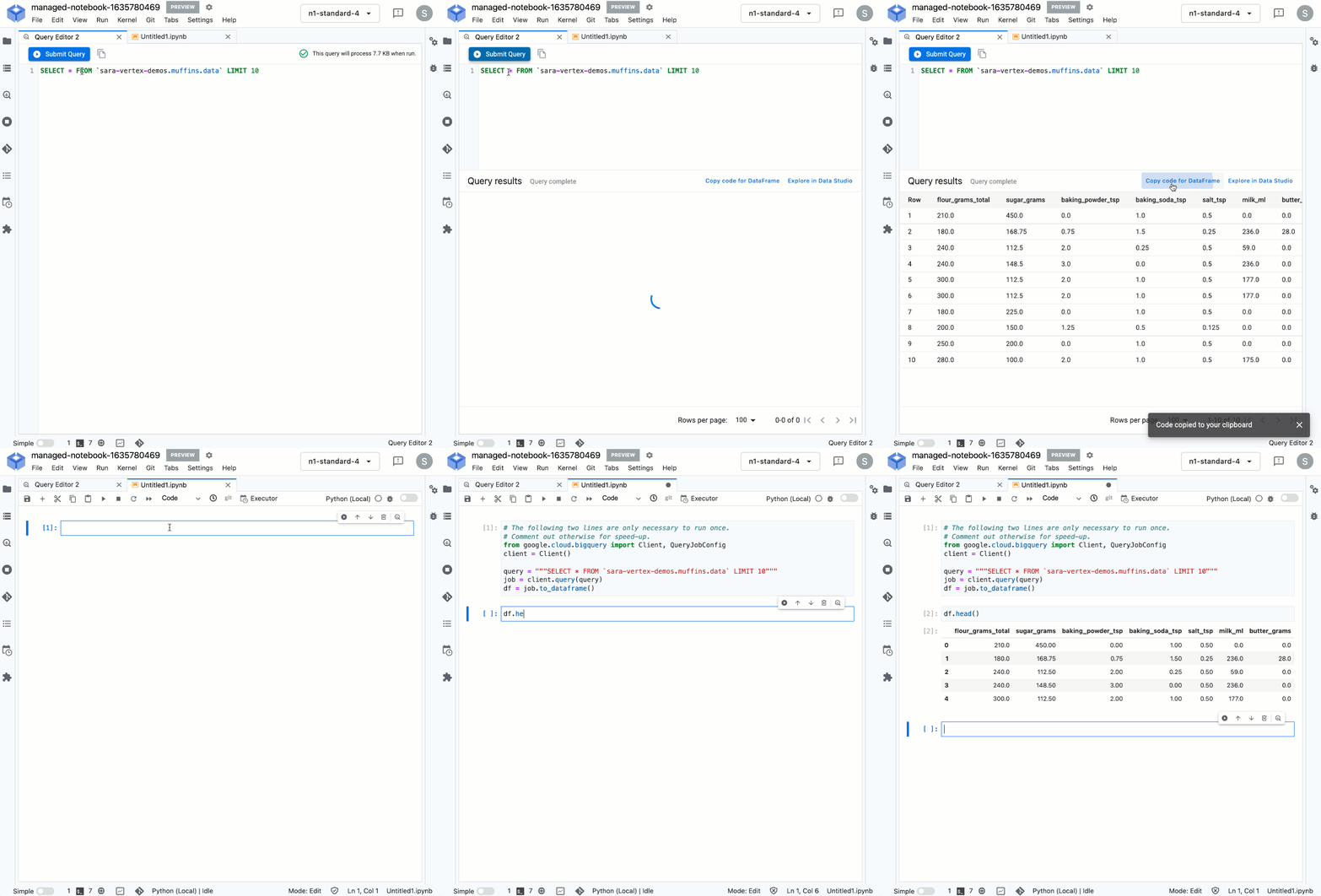
Sara uploaded the muffin ingredient data into BigQuery, and then created a notebook instance in Vertex AI Workbench to analyze the data. With the new Workbench managed instances, you can interactively query BigQuery tables directly from your instance and copy the code to download your data to a notebook as a Pandas DataFrame:
From her notebook instance, Sara experimented with different ML frameworks and model types. She landed on a Scikit-learn regression model to solve this task, and to mimic a real-world production environment, decided to convert this workflow into a ML pipeline. Using the Kubeflow Pipelines SDK, she ran the following on Vertex Pipelines:
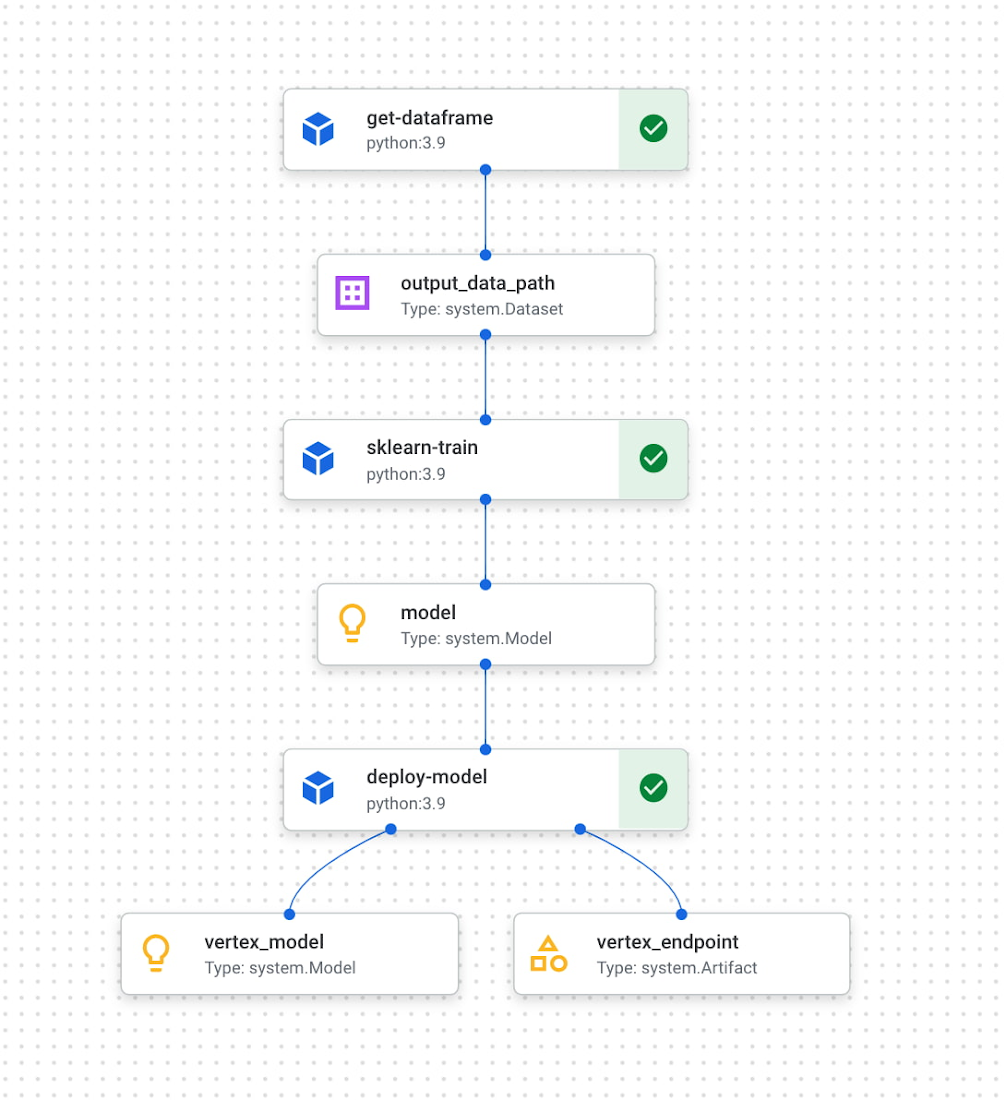
The first component reads the ingredient data from BigQuery and converts it into a Pandas DataFrame which is passed to the next pipeline step. In this step, we train a custom Scikit-learn model on the recipe data. Finally, this model is deployed to an endpoint in Vertex AI. To put it all together, Sara built a web app that allowed her to easily generate ingredient amounts for different muffin types. The web app uses the Vertex AI SDK to call the deployed model endpoint and return ingredient amounts.
The recipe
With a deployed recipe generation model, the only thing left to do was test recipes in the kitchen! Because the model only returns ingredient amounts, there were still many key human elements to complete the baking process: adding yummy additions to the core muffin batter, making adjustments to optimize taste, determining the method for adding ingredients, baking time, and more. After testing a few recipes generated by the model, we landed on a favorite which we’re very excited to share with you here.
Berry ML Muffins

Makes 12 muffins
Flour 285 grams (2 cups)
Granulated sugar 250 grams (1 cup)
Baking powder 2 teaspoons
Baking soda ¼ teaspoon
Salt ½ teaspoon
Cinnamon ½ teaspoon
Milk 170 ml (⅔ cup), room temperature
Butter 55 grams (¼ cup), melted and slightly cooled
Eggs 1 egg plus 1 egg white, room temperature
Canola or vegetable oil 50 grams (¼ cup)
Sour cream 50 grams (3 tablespoons + ¾ teaspoon), room temperature
Vanilla extract 1 ½ teaspoons
Blueberries or raspberries 240 grams (1 ½ cups)
Coarse sugar, like demerara or turbinado (optional for topping) 1 tablespoon
- Measure your three cold ingredients and allow them to come to room temperature: 1 egg + 1 egg white, sour cream, and milk.
- Preheat the oven to 375 F / 190 C. Line a 12-muffin tin with cupcake liners or lightly grease with baking spray.
- In a large bowl, whisk together flour, baking powder, baking soda, salt, and cinnamon. Set aside.
- Melt your butter in a medium heat proof bowl, and allow it to cool slightly for a few minutes. Whisk in sugar until combined. Then add egg, oil, and vanilla, milk, and sour cream and whisk until fully incorporated.
- Pour the wet ingredients into the dry ingredients, mixing with a spatula until just combined. Be careful not to overmix, it’s ok if there are a few lumps in your batter.
- Prepare your fruit. If you can’t decide whether to use blueberries or raspberries, divide your batter into two bowls and do both! Crush half of your fruit and fold it into the batter. Then mix in the remaining whole berries.
- Divide the mixture evenly into the muffin tin. Optionally (but extra tasty), sprinkle the tops of each muffin with about ⅛ teaspoon of coarse sugar. Turbinado or demerara sugar work well for this. This will caramelize and add a nice texture to the tops of your muffins.
- Bake at 375 for 22 – 24 minutes, or until a toothpick inserted in the center comes out clean. For best results, do a toothpick test in a few muffins since not all ovens have an even temperature throughout. Let the muffins cool in the muffin tin for a few minutes, then transfer to a wire rack to cool completely.
- Enjoy!
How can you participate in National Muffin Day?
Participation in National Muffin Day is as easy as 1-2-3!
- On February 20, Bake Muffins. It’s time to dust those muffin tins, grab your blueberries, chocolate chips, rhubarb, and favorite ingredients, and create some magical scrumdiddlyumptiousness! If you want to join Jacob in a virtual baking party, you can register here.
- Then, Give. In non-pandemic years, we asked our bakers to personally hand muffins to hungry folks in their cities. While this is a valuable and rewarding experience, the current state of Covid means this practice is still unsafe, so we request that you refrain from doing this. Instead, if it feels safe, we encourage you to take your delicious baked goods and donate them to local homeless shelters, which can distribute them to those in need. Alternatively, you can share your muffins with friends and families and then make a donation to an organization that benefits people experiencing homelessness, like the ones listed below in step 3.
- Share Your Muffin Pics on Social Media. We’d love to see your muffins! Share your pictures on Twitter or Instagram with the hashtags #givemuffins, or share them to our official Facebook Event page. For each individual baker who participates, we will make donations to Project Homeless Connect, which provides much needed resources to people experiencing homelessness in San Francisco, Family promise, which supports unhoused families nationwide, and Pine Street Inn which provides resources for people experiencing homelessness in Boston. Donations will be on a per-baker basis (with up to $80 donated per baker!), so please feel free to loop in your significant others, kids, nieces and nephews, roommates, friends, and anybody else with a giving spirit who loves deliciousness!
Maximize Efficiency in Document Extraction Models with Document AI Workbench GA Release

1299
Of your peers have already read this article.
3:30 Minutes
The most insightful time you'll spend today!
Each day, more documents are created and used across companies to make decisions. However, the value in these documents is primarily expressed as unstructured data, which makes the value difficult and manually intensive to extract and use for business processes.
As the number and variety of documents used by businesses proliferate, machine learning (ML) solutions need to be more flexible to handle the broader set of use cases. That’s why we introduced the first Document AI Workbench model, Custom Document Extractor (CDE), in Public Preview at Google Cloud Next ‘22. CDE makes it fast and easy to apply ML to virtually any document-based workflow to extract structured data from unstructured document types, to automate business processes.
CDE lets developers and analysts use their own data to train models and extract fields from documents needed for the business. CDE lets organizations build models faster and with less data — thus accelerating time-to-value for processing and analysis of data in documents.
Today, we announce that Document AI Workbench is Generally Available (GA), open to all customers, ready for production use through APIs and the Google Cloud Console. Document AI Workbench is covered by the Document AI SLA — online and batch document prediction is supported with >=99.9% uptime. Furthermore, Document AI Workbench is now covered by Google Cloud’s GA product terms. For example, Google will notify customers at least 12 months before significantly modifying a customer-facing Google API in a backwards-incompatible manner.
In this blog post, we’ll explore ways customers are already using CDE and Document AI Workbench’s updated capabilities.
What users are saying about Workbench
Deliver higher model accuracy with Workbench
Users leverage Workbench to ultimately save time and money. A third party evaluated Document AI Workbench and concluded that it extracts data more accurately1 than several competing products for document types with variable layouts (e.g. invoice, receipt, bank statements, paystubs). Better accuracy drives higher automation rates, helping Workbench users save time and money.
Chris Jangareddy, managing director for Artificial Intelligence & Data at Deloitte Consulting LLP said, “Google Cloud Document AI is a leading document processing solution packed with rich features like multi-step classify and text extraction to automate sorting, classification, extraction, and quality assurance. By combining Document AI with Workbench, Google Cloud has created a forward-thinking and powerful AI platform for intelligent document processing that will allow for process transformation at an enterprise scale with predictable outcomes that can benefit businesses.”
Mansoor Khan, CEO of OneClinic said, “We help medical professionals scale their clinics through automation. We used Google’s Document AI Workbench to create a model to automatically extract data from patients’ insurance cards as part of our patient check-in software. Workbench is easy to use and we are really happy with the model accuracy — it extracts data more accurately than what we would expect from human data entry.”
Rajnish Palande, VP, Google Business Unit for BFSI, TCS said, “The Google Cloud Document AI Workbench leverages artificial intelligence (AI) to manage and glean insights from unstructured data. The Workbench brings together the power of classification, auto-annotation, page-number identification and multi-language support to help organizations rapidly deliver enhanced accuracy, improved operational efficiency, higher confidence in the information extract, and increased return on investment.”
Build production ready models faster with Workbench
Document AI Workbench helps users create machine learning models faster. For example, a third-party evaluation shows Document AI Workbench trains machine learning models up to 3x faster than a leading competitor. This is an important improvement which lowers total cost of ownership and increases value.
Dallas Dolen, Partner, Google Alliance Leader at PwC said, “Google Document AI Workbench helps to accelerate our custom parser models training as well as improves accuracy and performance using a custom document extractor with human in the loop. It helps us solve complex business problems for our clients in the financial services and healthcare industries.”
Ziang Jia, Senior DocAl Development Lead at Resultant, said, “Document AI Workbench has unlocked a brand-new machine learning development experience for information extraction solutions. Its simplicity and robustness enabled us to build models and deliver a highly accurate outcome in an agile way for a large government agency. We couldn’t be more impressed by its simplicity and robustness and are excited to see how the product will evolve in the future.”
Sean Earley, VP of Delivery Services of Zencore said, “Document AI Workbench allows us to develop highly accurate document parsing models in a matter of days. Our customers have automated tasks that formerly required significant human labor. For example, using Document AI Workbench, a team of two trained a model to split, classify and extract data from 15 document types to automate Home Mortgage Disclosure Act reporting. The mean trained model accuracy was 94%, drastically reducing the operational cost of our customer’s compliance reporting procedures.”
What’s new with Document AI Workbench
The latest Workbench capabilities make it even easier to train and deploy an extraction model:
- With Workbench’s public APIs, you can programmatically create, delete, train, evaluate and deploy models.
- Our updated dataset management tools automatically detect and create existing schema labels from your pre-annotated documents. They also provide you more flexibility when creating and managing schema.
- Our new DocAI Toolkit includes a labeled document converter so that you can easily convert your labeled documents to DocAI’s format and start training faster.
- We’ve reduced the cognitive load for labelers with efficiency enhancements to our Labeling UI.
- The revamped Processor Gallery helps you quickly identify the best model for your use case.
What’s next for Document AI Workbench
We continue to invest in Document AI Workbench to help you automate document processing. Here are a few things we’re working on that we’re excited about:
- Classify document types with the Custom Document Classifier (CDC), coming soon in public preview
- Copy processor versions across projects and processors to streamline managing development and production environments
- Support larger documents (e.g., longer than 50 pages) so you can process a wider array of documents
- Broader (non-latin) language support–equivalent to Document AI OCR
- And many more investments, using state of the art technology, to help you build world class models faster to automate document processing
Document AI Workbench is in GA and ready for production workloads. Learn more via Document AI Workbench documentation or try it out in the Google Cloud Console.
Acknowledgements: Tomas Moreno, Outbound Product Manager, Lukas Rutishauser, Software Engineering Manager, Michael Kwong, Software Engineering Manager, Rajagopal Janani, Software Engineering Manager, Michael Lanning, UX Designer.
1. When trained with 200+ documents
Increasing Production Efficiency: How AI Can Improve Asset Utilization and Minimize Downtime

2690
Of your peers have already read this article.
1:30 Minutes
The most insightful time you'll spend today!
Today, manufacturers are advancing on their factory digitalization journey, betting on innovative technologies to strengthen competitiveness, deliver sustainable growth, and offer new services. Macroeconomic factors – such as high energy costs, increasing labor, and raw material shortages – drive the need for urgent operational optimizations and automation.
Cloud capabilities have matured at an accelerated pace, giving manufacturers practical avenues to achieve these goals. Manufacturers are finding new ways to bring AI and machine learning (ML) to practical use cases, like predictive maintenance, anomaly detection, and asset utilization management. However, manufacturers struggle to adopt AI at scale due to challenges around data accessibility, infrastructure, and technology.
Google Cloud created purpose-built tools and solutions to organize manufacturing data, make it accessible and useful, and help manufacturers quickly take significant steps on this journey by reducing the time to value. In this post, we will explore a practical example of how manufacturers can use Google Cloud manufacturing solutions to train, deploy and extract value from ML-enabled capabilities to predict asset utilization and maintenance needs.
The journey to machine learning insights starts with accessible data
The first step to a successful machine learning project is to unify necessary data in a common repository. For this, we will use Manufacturing Connect, the factory edge platform co-developed with Litmus Automation, to connect to manufacturing assets and stream the asset telemetries to Pub/Sub.
After the telemetry messages are published to Pub/Sub, Dataflow will identify each message based on its structure and apply corresponding normalizations and transformations, which are preconfigured in Manufacturing Data Engine. Once the messages are processed, the messages will be routed to Cloud Storage, BigQuery, and/or Cloud BigTable based on user configuration.
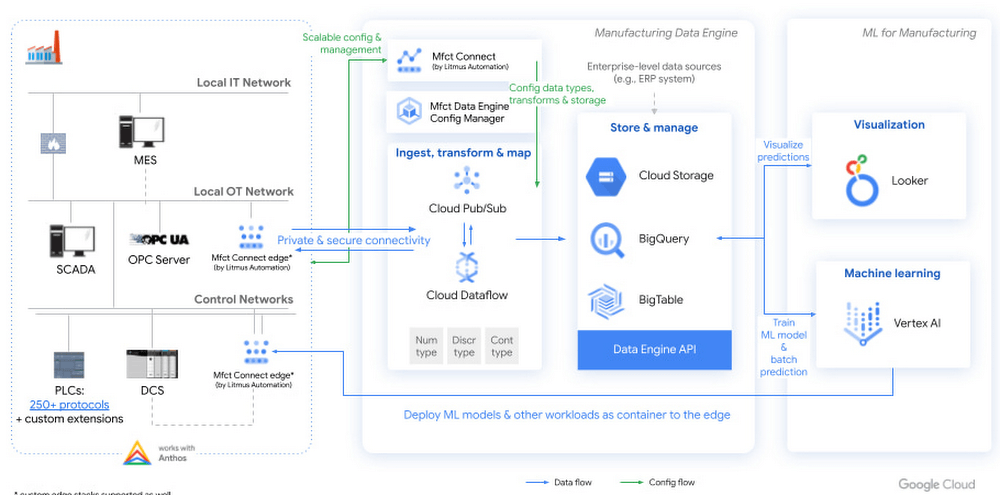
Figure 1. High level architecture diagram of machine learning with Manufacturing Data Engine
To train a machine learning model, manufacturers can use Vertex AI AutoML to build a no-code model based on the training data stored in the Manufacturing Data Engine.
Then, users can trigger a batch prediction job in Vertex AI or export the AutoML model to run on the edge component of Manufacturing Connect for real-time prediction. Regardless of the model deployment methods, the prediction and explanation results will be ingested into Manufacturing Data Engine, which can be analyzed and visualized in Looker.
A blueprint for classifying asset condition
The following scenario is based on a hypothetical company, Cymbal Materials. This company is a factitious discrete manufacturing company that runs 50+ factories in 10+ countries. 90% of Cymbal Materials manufacturing processes involve milling, which are accomplished using industrial computer numerical control (CNC) milling machines. Although their factories implement routine maintenance checklists, there are unplanned and unknown failures that happen occasionally. However, many of the Cymbal Materials factory workers lack the experience to identify and troubleshoot failures due to labor shortage and high turnover rate in their factories. Hence, Cymbal Materials is working with Google Cloud to build a machine learning model that can identify and analyze failures on top of Manufacturing Connect, Manufacturing Data Engine, and Vertex AI.
For the pilot, Cymbal Materials forms a team of manufacturing engineers and data scientists to evaluate the feasibility of solving the tool wear detection problem. To avoid compliance concern, the Cymbal Materials team chooses to start with a public tool wear detection dataset hosted on Kaggle. This dataset is collected from running machining experiments on 2″ x 2″ x 1.5″ wax blocks in a CNC milling machine. The dataset contains measurements from the 4 motors (X,Y, Z axes and spindle) and program values in the CNC machine, which maps well to the data that Cymbal Materials collects for their CNC milling machines.
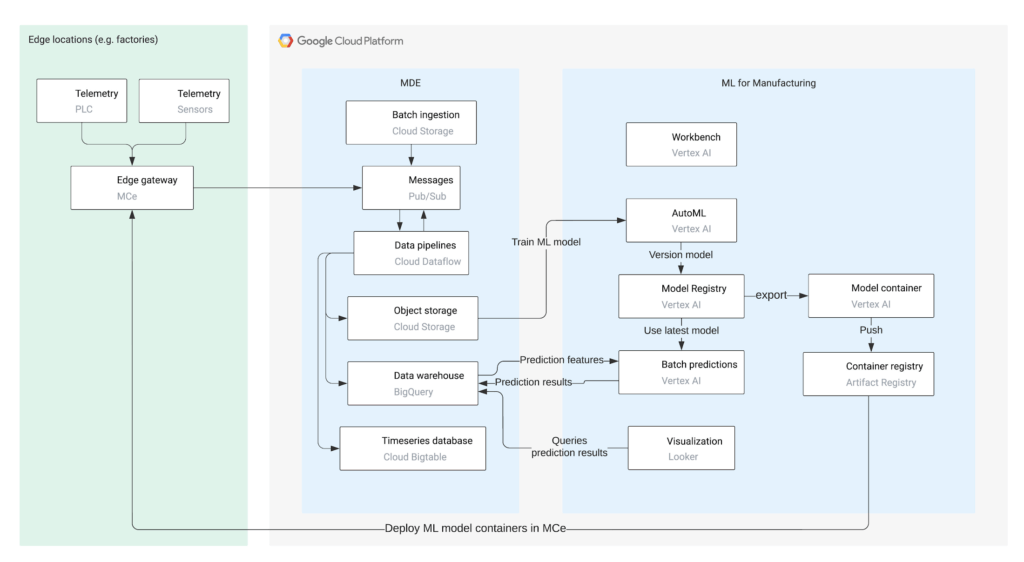
To start, the Cymbal Materials data scientists download the tool wear detection dataset from Kaggle and upload the dataset to Cloud Storage. Then, the data scientists use Vertex AI to:
- Perform exploratory data analysis using Vertex AI Workbench
- Train machine learning models using Vertex AI AutoML
- Deploy machine learning models to perform batch prediction and export AutoML models for edge deployment
- Interpret predictions using Vertex Explainable AI
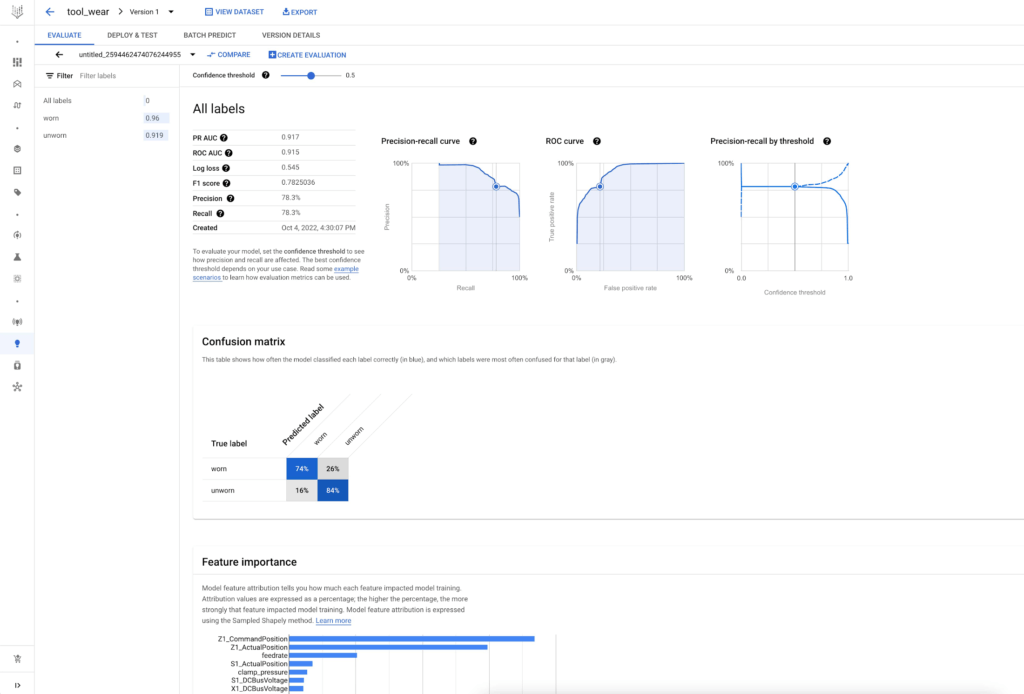
After seeing great performance of the AutoML tabular model, the Cymbal Materials data scientists decide to use the AutoML model to predict on the actual CNC milling machine telemetries from their factories and validate the generalizability of the AutoML model. They ask the manufacturing engineers to deploy Manufacturing Connect in a Cymbal Materials factory and stream telemetries for one CNC milling machine to the Manufacturing Data Engine.
Manufacturing Connect includes an edge component that can gather data from manufacturing assets via an extensive library of 250+ communication protocols. The edge component of Manufacturing Connect comes with built-in Node-RED and Docker runtime, which support running custom workflows and machine learning models at the edge.
Using pre-defined hierarchies, Manufacturing Connect pushes asset telemetries and states to Pub/Sub.
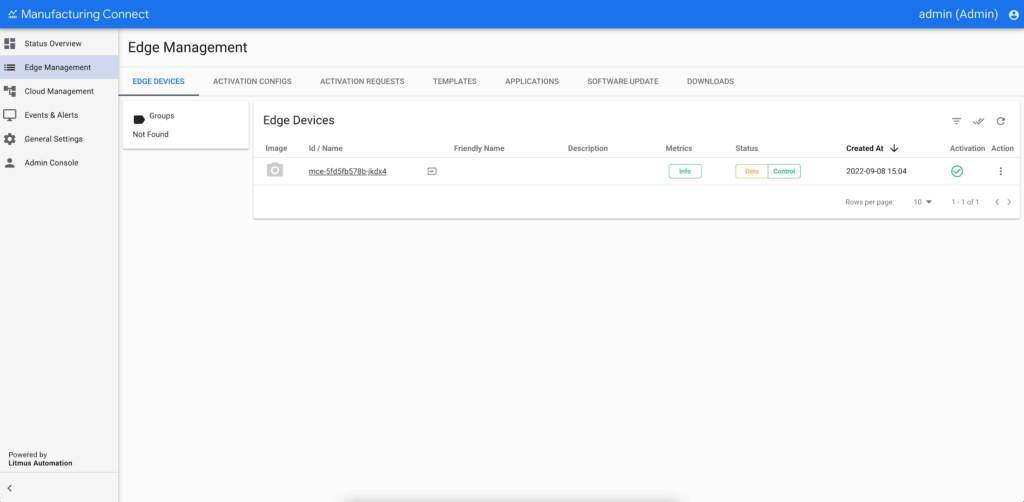
After the factory operational data are ingested into Pub/Sub, Cymbal Materials uses Manufacturing Data Engine to:
- Normalize, transform, and contextualize real-time operational data with slowly changing metadata
- Batch ingest historical operational data and prediction results
- Route data dynamically to Cloud Storage, BigQuery, and/or Cloud BigTable
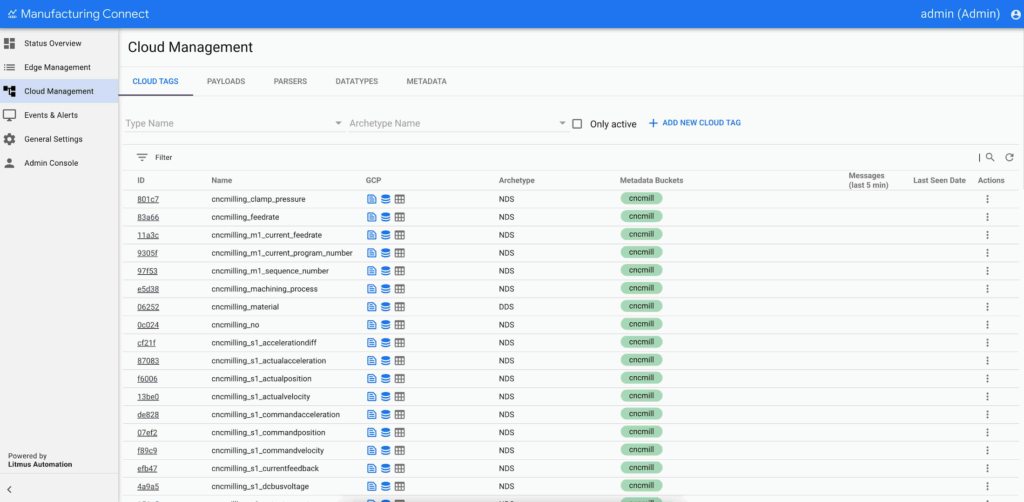
Figure 5. Manufacturing Data Engine configuration in Manufacturing Connect.
Using the trained AutoML tabular model and real-time telemetries from CNC milling machines, the data scientists trigger a batch prediction job on the CNC milling machine telemetries in BigQuery. The data scientists configure the batch prediction to output prediction results in Cloud Storage such that Manufacturing Data Engine can batch ingest the prediction results after the batch prediction job completes.
To consume the prediction results, the Cymbal Materials manufacturing engineers use Looker to create visualizations. The dashboard allows the manufacturing engineers to:
- Visualize the CNC milling machine actual and predicted tool conditions over time
- Explain the prediction results by summarizing the top attributing features
- Create alerts based on the predicted tool condition for their assets
- Take actions by contacting the supplier and/or scheduling maintenance for their assets
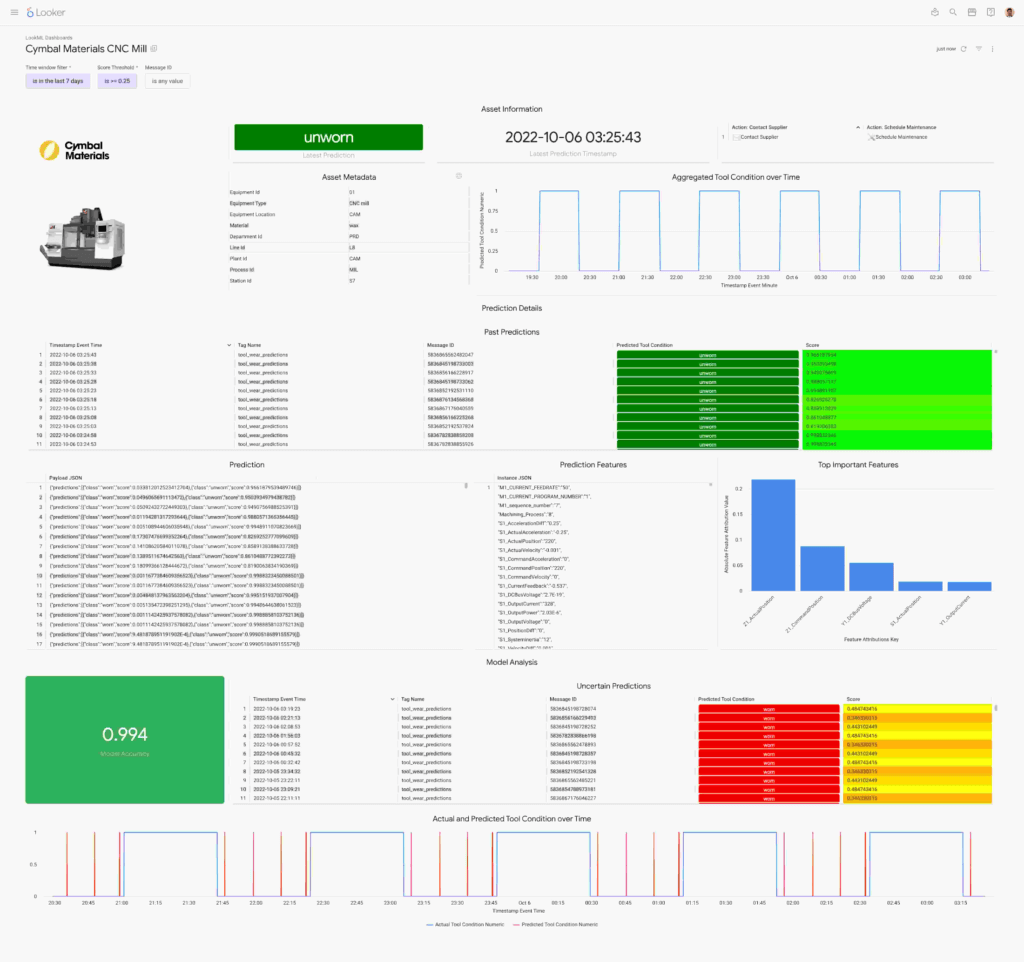
Figure 6. CNC mill wear prediction displayed in a Looker dashboard.
From edge to cloud, improving production efficiency for manufacturers
To support the entire factory digitalization value journey, manufacturers are looking for capabilities from simple visualizations to predictive ML models. Robust solutions, such as the one covered here, provide rapid paths for engineers to extract insight from their factory data.
Having a common data repository for manufacturing data, industry-leading machine learning platform, and versatile dashboard components accelerate manufacturer’s digital transformation.
This solution brings the best of Google Cloud’s data analytics and artificial intelligence capabilities in an industrial environment. Manufacturing Connect creates the link between industrial machinery and Manufacturing Data Engine, the cloud platform where the manufacturing data are processed, normalized, contextualized, and stored in a ready-to-consume format. Vertex AI can build, deploy, and scale machine learning models using data stored in the Manufacturing Data Engine. Vertex AI includes AutoML and Workbench for training models without code and training custom models with code-first experience respectively.
Learn more about how Google Cloud is transforming manufacturing to meet changing customer expectations at our Google Cloud Next Manufacturing playlist.
What’s next
More Relevant Stories for Your Company

Two Ad Agencies Leverage BigQuery to Support Next-gen Ad Campaigns
Advertising agencies are faced with the challenge of providing the precision data that marketers require to make better decisions at a time when customers’ digital footprints are rapidly changing. They need to transform customer information and real-time data into actionable insights to inform clients what to execute to ensure the

AirAsia Turns to Google Cloud to refine Pricing, Increase Revenue, and Improve Customer Experience
AirAsia needed a platform incorporating products that could capture, process, analyze, and report on data, while delivering value for money and meeting its speed and availability requirements. The airline also wanted to minimise infrastructure management and system administration demands on its technology team members. The airline conducted a proof of

Google Cloud CCAI’s Support for the Public Sector Soars during the Pandemic
Scaling Virtual Support in the Pandemic Era: The AI Connection Since the early days of the pandemic, we’ve partnered with government organizations and academic institutions to serve communities at scale with Contact Center Artificial Intelligence (CCAI). I sat down with Bill MacKenzie, IT liaison for the Upper Grand School District


Can Your Data Warehouse Handle a 100-Trillion Row Query?
Today's enterprise demands from data go far beyond the capabilities of traditional data warehousing and for many leaders, the need to digitally transform their businesses is a key driver for data analytics spending. Businesses want to make real-time decisions from fresh information as well as make future predictions from their
