





Minimum Instances for Cloud Functions to Keep Performances Going for Serverless Apps
3369
Of your peers have already read this article.
2:00 Minutes
The most insightful time you'll spend today!
Cloud Functions, Google Cloud’s Function as a Service (FaaS) offering, is a lightweight compute platform for creating single-purpose, standalone functions that respond to events, without needing an administrator to manage a server or runtime environment.
Over the past year we have shipped many new important capabilities on Cloud Functions: new runtimes (Java, .NET, Ruby, PHP), new regions (now up to 22), an enhanced user and developer experience, fine-grained security, and cost and scaling controls. But as we continue to expand the capabilities of Cloud Functions, the number-one friction point of FaaS is the “startup tax,” a.k.a. cold starts: if your function has been scaled down to zero, it can take a few seconds for it to initialize and start serving requests.
Today, we’re excited to announce minimum (“min”) instances for Cloud Functions. By specifying a minimum number of instances of your application to keep online during periods of low demand, this new feature can dramatically improve performance for your serverless applications and workflows, minimizing your cold starts.
Min instances in action
Let’s take a deeper look at min instances with a popular, real-world use case: recording, transforming and serving a podcast. When you record a podcast, you need to get the audio in the right format (mp3, wav), and then make the podcast accessible so that users can easily access, download and listen to it. It’s also important to make your podcast accessible to the widest audience possible including those with trouble hearing and those who would prefer to read the transcript of the podcast.
In this post, we show a demo application that takes a recorded podcast, transcribes the audio, stores the text in Cloud Storage, and then emails an end user with a link to the transcribed file, both with and without min instances.
Approach 1: Building the application with Cloud Functions and Cloud Workflows
In this approach, we use Cloud Functions and Google Cloud Workflows to chain together three individual cloud functions. The first function (transcribe) transcribes the podcast, the second function (store-transcription) consumes the result of the first function in the workflow and stores it in Cloud Storage, and the third function (send-email) is triggered by Cloud Storage when the transcribed result is stored and sends an email to the user to inform them that the workflow is complete.

Cloud Workflows executes the functions in the right order and can be extended to add additional steps in the workflow in the future. While the architecture in this approach is simple, extensible and easy to understand, the cold start problem remains, impacting end-to-end latency.
Approach 2: Building the application with Cloud Functions, Cloud Workflows and min instances
In this approach, we follow all the same steps as in Approach 1, with a slightly modified configuration that enables a set of min instances for each of the functions in the given workflow.

This approach presents the best of both worlds. It has the simplicity and elegance of wiring up the application architecture using Cloud Workflows and Cloud Functions. Further, each of the functions in this architecture leverages a set of min instances to mitigate the cold-start problem and time to transcribe the podcast.
Comparison of cold start performance
Now consider executing the Podcast transcription workflow using Approach 1, where no min instances are set on the functions that make up the app. Here is an instance of this run with a snapshot of the log entries. The start and end timestamps are highlighted to show the execution of the run. You can see here that the total runtime in Approach 1 took 17 s.
Approach 1: Execution Time (without Min Instances)

Now consider executing the podcast transformation workflow using Approach 2, where min instances are set on the functions. Here is an instance of this run with a snapshot of the log entries. The start and end timestamps are highlighted to show the execution of the run, for a total of 6 s.
Approach 2: Execution Time (with Min Instances)
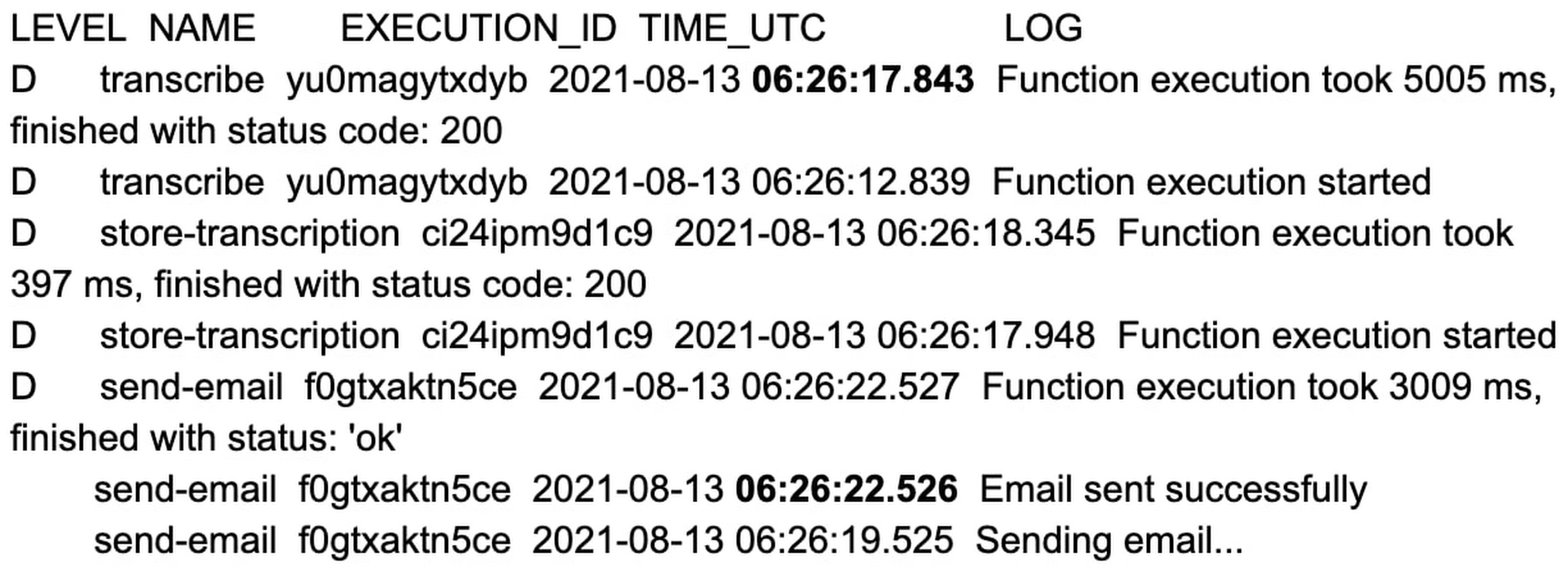
That’s an 11 second difference between the two approaches. The example set of functions are hardcoded with a 2 to 3 second sleep during function initialization, and when combined with average platform cold-start times, you can clearly see the cost of not using min instances.
You can reproduce the above experiment in your own environment using the tutorial here.
Check out min instances on Cloud Functions
We are super excited to ship min instances on Cloud Functions, which will allow you to run more latency-sensitive applications such as podcast transcription workflows in the serverless model. You can also learn more about Cloud Functions and Cloud Workflows in the following Quickstarts: Cloud Functions, Cloud Workflows.
5 Best Practices for Cloud Cost Optimization

5788
Of your peers have already read this article.
3:30 Minutes
The most insightful time you'll spend today!
When customers migrate to Google Cloud Platform (GCP), their first step is often to adopt Compute Engine, which makes it easy to procure and set up virtual machines (VMs) in the cloud that provide large amounts of computing power. Launched in 2012, Compute Engine offers multiple machine types, many innovative features, and is available in 20 regions and 61 zones!
Compute Engine’s predefined and custom machine types make it easy to choose VMs closest to your on-premises infrastructure, accelerating the workload migration process cost effectively. Cloud allows you the pricing advantage of ‘pay as you go’ and also provides significant savings as you use more compute with Sustained Use Discounts.
As Technical Account Managers, we work with large enterprise customers to analyze their monthly spend and recommend optimization opportunities. In this blog, we will share the top recommendations that we’ve developed based on our collective experience working with GCP customers.
Getting ready to save
Before you get started, be sure to familiarize yourself with the VM instance pricing page—required reading for anyone who needs to understand the Compute Engine billing model and resource-based pricing. In addition to those topics, you’ll also find information about the various Compute Engine machine types, committed use discounts and how to view your usage, among other things.
Another important step to gain visibility into your Compute Engine cost is using Billing reports in the Google Cloud Console and customizing your views based on filtering and grouping by projects, labels and more. From there you can export Compute Engine usage details to BigQuery for more granular analysis. This allows you to query the datastore to understand your project’s vCPU usage trends and how many vCPUs can be reclaimed. If you have defined thresholds for the number of cores per project, usage trends can help you spot anomalies and take proactive actions. These actions could be rightsizing the VMs or reclaiming idle VMs.
Now, with these things under your belt, let’s go over the five ways you can optimize your Compute Engine resources that we believe will give you the most immediate benefit.
1. Apply Compute Engine rightsizing recommendations
Compute Engine’s rightsizing recommendations feature provides machine type recommendations that are generated automatically based on system metrics gathered by Stackdriver Monitoring over the past eight days. Use these recommendations to resize your instance’s machine type to more efficiently use the instance’s resources. It also recommends custom machine types when appropropriate. Compute Engine makes viewing, resizing and other actions easier right from the Cloud Console as shown below.
Recently, we expanded Compute Engine rightsizing capabilities from just individual instances to managed instance groups as well. Check out the documentation for more details.
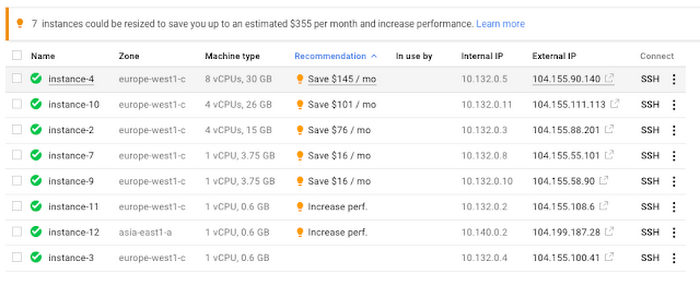
For more precise recommendations, you can install the Stackdriver Monitoring agent which collects additional disk, CPU, network, and process metrics from your VM instances to better estimate your resource requirements. You can also leverage the Recommender API for managing recommendations at scale.
2. Purchase Commitments
Our customers have diverse workloads running on Google Cloud with differing availability requirements. Many customers follow a 70/30 rule when it comes to managing their VM fleet—they have constant year-round usage of ~70%, and a seasonal burst of ~30% during holidays or special events.
If this sounds like you, you are probably provisioning resources for peak capacity. However, after migrating to Google Cloud, you can baseline your usage and take advantage of deeper discounts for Compute workloads. Committed Use Discounts are ideal if you have a predictable steady-state workload as you can purchase a one or three year commitment in exchange for a substantial discount on your VM usage.
We recently released a Committed Use Discount analysis report in the Cloud Console that helps you understand and analyze the effectiveness of the commitments you’ve purchased. In addition to this, large enterprise customers can work with their Technical Account Managers who can help manage their commitment purchases and work proactively with them to increase Committed Use Discount coverage and utilization to maximize their savings.
3. Automate cost optimizations
The best way to make sure that your team is always following cost-optimization best practices is to automate them, reducing manual intervention.
Automation is greatly simplified using a label—a key-value pair applied to various Google Cloud services. For example, you could label instances that only developers use during business hours with “env: development.” You could then use Cloud Scheduler to schedule a serverless Cloud Function to shut them down over the weekend or after business hours and then restart them when needed. Here is an architecture diagram and code samples that you can use to do this yourself.
Using Cloud Functions to automate the cleanup of other Compute Engine resources can also save you a lot of time and money. For example, customers often forget about unattached (orphaned) persistent disk, or unused IP addresses. These accrue costs, even if they are not attached to a virtual machine instance. VMs with the “deletion rule” option set to “keep disk” retain persistent disks even after the VM is deleted. That’s great if you need to save the data on that disk for a later time, but those orphaned persistent disks can add up quickly and are often forgotten! There is a Google Cloud Solutions article that describes the architecture and sample code for using Cloud Functions, Cloud Scheduler, and Stackdriver to automatically look for these orphaned disks, take a snapshot of them, and remove them. This solution can be used as a blueprint for other cost automations such as cleaning up unused IP addresses, or stopping idle VMs.
4. Use preemptible VMs
If you have workloads that are fault tolerant, like HPC, big data, media transcoding, CI/CD pipelines or stateless web applications, using preemptible VMs to batch-process them can provide massive cost savings. In fact, customer Descartes Labs reduced their analysis costs by more than 70% by using preemptible VMs to process satellite imagery and help businesses and governments predict global food supplies.
Preemptible VMs are short lived— they can only run a maximum of 24 hours, and they may be shut down before the 24 hour mark as well. A 30-second preemption notice is sent to the instance when a VM needs to be reclaimed, and you can use a shutdown script to clean up in that 30-second period. Be sure to fully review the full list of stipulations when considering preemptible VMs for your workload. All machine types are available as preemptible VMs, and you can launch one simply by adding “-preemptible” to the gcloud command line or selecting the option from the Cloud Console.
Using preemptible VMs in your architecture is a great way to scale compute at a discounted rate, but you need to be sure that the workload can handle the potential interruptions if the VM needs to be reclaimed. One way to handle this is to ensure your application is checkpointing as it processes data, i.e., that it’s writing to storage outside the VM itself, like Google Cloud Storage or a database. As an example, we have sample code for using a shutdown script to write a checkpoint file into a Cloud Storage bucket. For web applications behind a load balancer, consider using the 30-second preemption notice to drain connections to that VM so the traffic can be shifted to another VM. Some customers also choose to automate the shutdown of preemptible VMs on a rolling basis before the 24-hour period is over, to avoid having multiple VMs shut down at the same time if they were launched together.
5. Try autoscaling
Another great way to save on costs is to run only as much capacity as you need, when you need it. As we mentioned earlier, typically around 70% of capacity is needed for steady-state usage, but when you need extra capacity, it’s critical to have it available. In an on-prem environment, you need to purchase that extra capacity ahead of time. In the cloud, you can leverage autoscaling to automatically flex to increased capacity only when you need it.
Compute Engine managed instance groups are what give you this autoscaling capability in Google Cloud. You can scale up gracefully to handle an increase in traffic, and then automatically scale down again when the need for instances is lowered (downscaling). You can scale based on CPU utilization, HTTP load balancing capacity, or Stackdriver Monitoring metrics. This gives you the flexibility to scale based on what matters most to your application.
High costs do not compute
As we’ve shown above, there are many ways to optimize your Compute Engine costs. Monitoring your environment and understanding your usage patterns is key to understanding the best options to start with, taking the time to model your baseline costs up front. Then, there are a wide variety of strategies to implement depending on your workload and current operating model.
For more on cost management, check out our cost management video playlist. And for more tips and tricks on saving money on other GCP services, check out our blog posts on Cloud Storage, Networking and BigQuery cost optimization strategies. We have additional blog posts coming soon, so stay tuned!
3178
Of your peers have already watched this video.
6:00 Minutes
The most insightful time you'll spend today!
A Headless Ecommerce on Google Cloud
Headless commerce helps marketing teams gain flexibility to alter frontend elements to run marketing campaigns and promotions and create the most superior customer experience on frontend devices. Watch the video to learn the basics of building a headless commerce application on Google Cloud. Meaning you will learn to have the frontend experience deployed on Cloud Run in Google Cloud, and integrate with commerce backend from Google Cloud Marketplace offering partner commerce tools.

4015
Of your peers have already downloaded this article
4:20 Minutes
The most insightful time you'll spend today!
Modern web APIs allow businesses to build compelling experiences that generate, consume, and combine digital assets. They’ve become the foundation upon which digital business is built.
But the path to success can be unclear, rough, and challenging. The game has changed, after all, and this requires tossing out many of the rules by which you run your business.
You’re not alone. Other businesses have struggled down the path toward increased competitiveness, agility, and opportunity—and we, at Google Cloud, are privileged to partner with hundreds of customers across myriad industries as they gear up to go digital.
We’ve seen the successful decisions and strategies that have enabled companies to adapt to new digital realities. But we’ve also seen businesses make decisions that slowed, stymied, or, in some cases, reversed progress toward becoming an agile digital business.
There’s no one path to travel. There are many ways to make your business digital, but there are also many pitfalls. This is the survival guide to help navigate a smarter digital journey.
There’s one bit of advice we can offer above all else: GET STARTED. If you don’t take steps to adapt to the new competitive landscape and to your customers’ expectations, the very survival of your business is at risk.
Download the E-book to know more about the best and worst practices of how a business leads, measures, invests in, and executes an API initiative.
Budget-Friendly Log Management: Four Steps to Cost Optimization in Google Cloud

1210
Of your peers have already read this article.
4:30 Minutes
The most insightful time you'll spend today!
As part of our ongoing series on cost management for observability data in Google Cloud, we’re going to share four steps for getting the most out of your logs while on a budget. While we’ll focus on optimizing your costs within Google Cloud, we’ve found that this works with customers with infrastructure and logs on prem and in other clouds as well.
Step 1: Analyze your current spending on logging tools
To get started, create an itemized list of what volume of data is going where and what it costs. We’ll start with the billing report and the obvious line items including those under Operations Tools/Cloud Logging:
- Log Volume – the cost to write log data to disk once (see our previous blog post for an explanation)
- Log Storage Volume – the cost to retain logs for more than 30 days
If you’re using tools outside Cloud Logging, you’ll also need to include any costs related to these solutions. Here’s a list to get you started:
- Log vendor and hardware costs — what are you paying to observability vendors? If you’re running your own logging solution, you’ll want to include the cost of compute and disk.
- If you export logs within Google Cloud, include Cloud Storage and BigQuery costs
- Processing costs — consider the costs for Kafka, Pub/Sub or Dataflow to process logs. Network egress charges may apply if you’re moving logs outside Google Cloud.
- Engineering resources dedicated to managing your logging tools across your enterprise often are significant too!
Step 2: Eliminate waste — don’t pay for logs you don’t need
While not all costs scale directly with volume, optimizing your log volume is often the best way to reduce spend. Even if you are using a vendor with a contract that locks you into a fixed price for a period of time, you may still have costs in your pipeline that can be reduced by avoiding wasteful logs such as Kafka, Pub/Sub or Dataflow costs.
Finding chatty logs in Google Cloud
The easiest way to understand which sources are generating the highest volume of logs within Google Cloud is to start with our pre-built dashboards in Cloud Monitoring. To access the available dashboards:
- Go to Monitoring -> Dashboards
- Select “Sample Library” -> “Logging”
This blog post has some specific recommendations for optimizing logs for GKE and GCE using prebuilt dashboards.
As a second option, you can use Metrics Explorer and system metrics to analyze the volume of logs. For example, type “log bytes ingested” into the filter. This specific metric corresponds to the Cloud Logging “Log Volume” charge. There are many ways to filter this data. To get a big picture, we often start with grouping by both “resource_type” and “project_id”.
To narrow down the resource type in a particular project, add a “project_id” filter. Select “sum” under the Advanced Options -> Click on Aligner and select “sum”. Sort by volume to see the resources with the highest log volume.
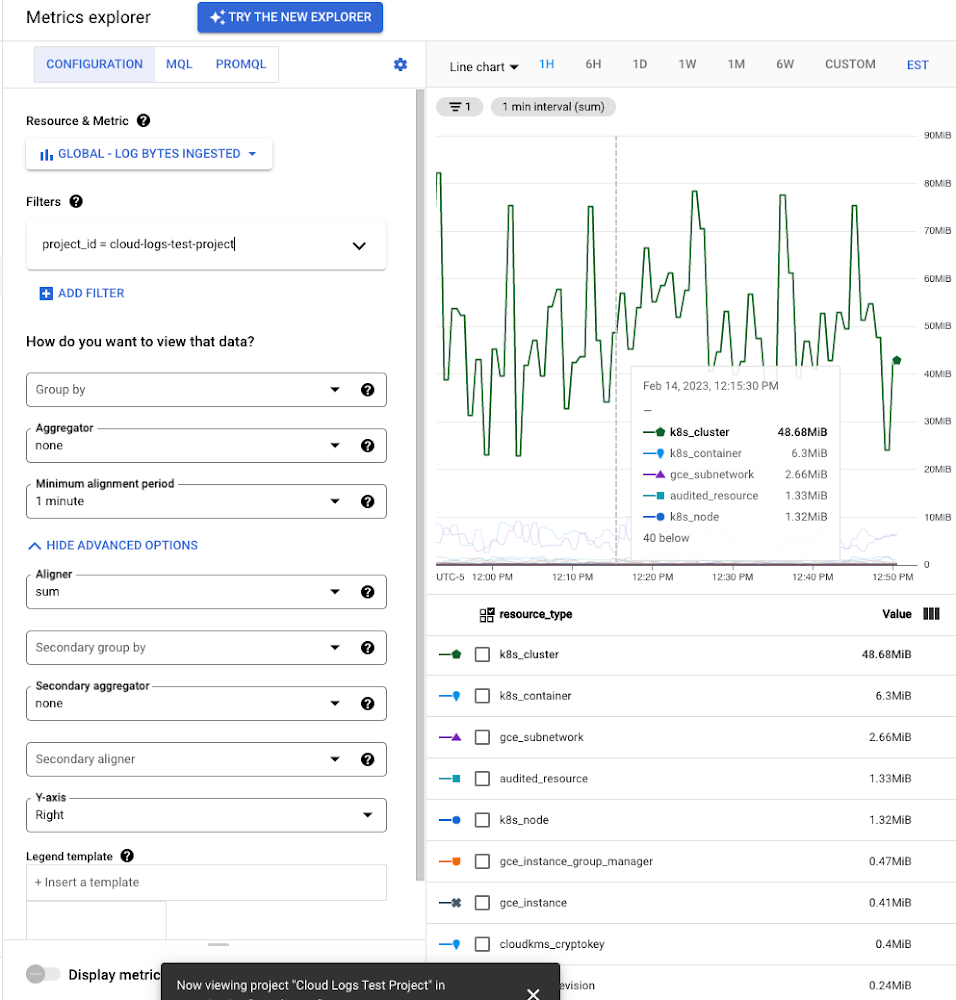
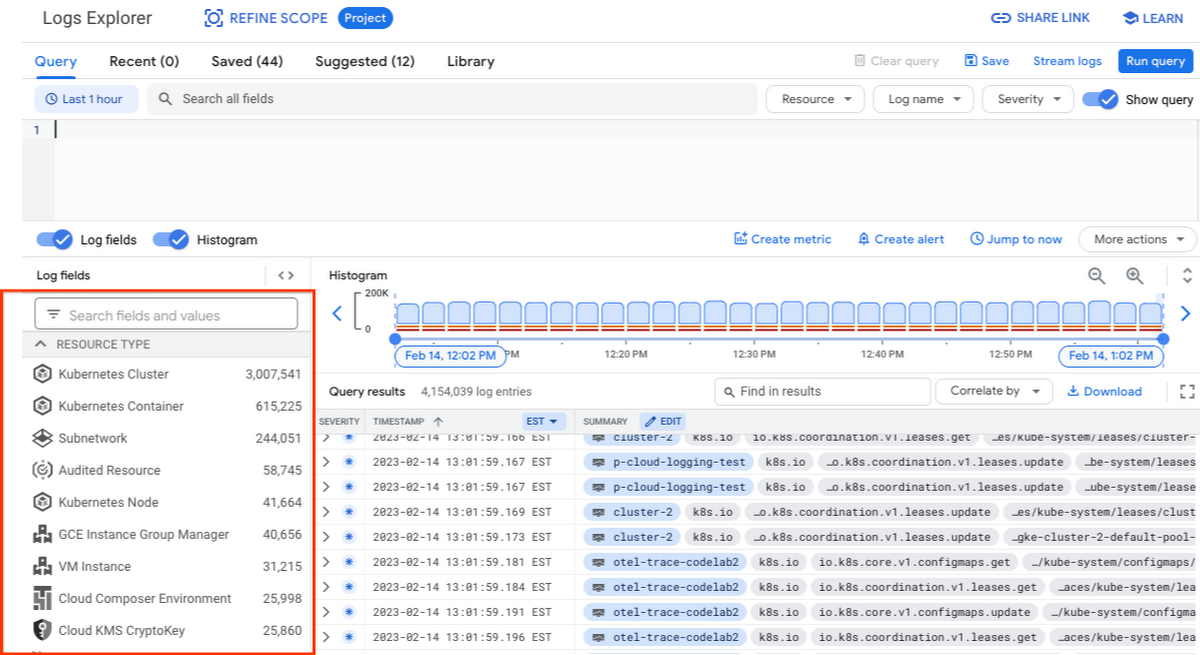
While these rich metrics are great for understanding volumes, you’ll probably want to eventually look at the logs to see whether they’re critical to your observability strategy. In Logs Explorer, the log fields on the left side help you understand volumes and filter logs from a resource type.
Reducing log volume with the Logs Router
Now that we understand what types of logs are expensive, we can use the Log Router and our sink definitions to reduce these volumes. Your strategy will depend on your observability goals, but here are some general tools we’ve found to work well.
The most obvious way to reduce your log volume is not to send the same logs to multiple storage destinations. One common example of this is when a central security team uses an aggregated log sink to centralize their audit logs but individual projects still ingest these logs. Instead, use exclusion filters on the _Default log sink and any other log sinks in each project to avoid these logs. Exclusion filters also work on log sinks to BigQuery, Pub/Sub, or Cloud Storage.
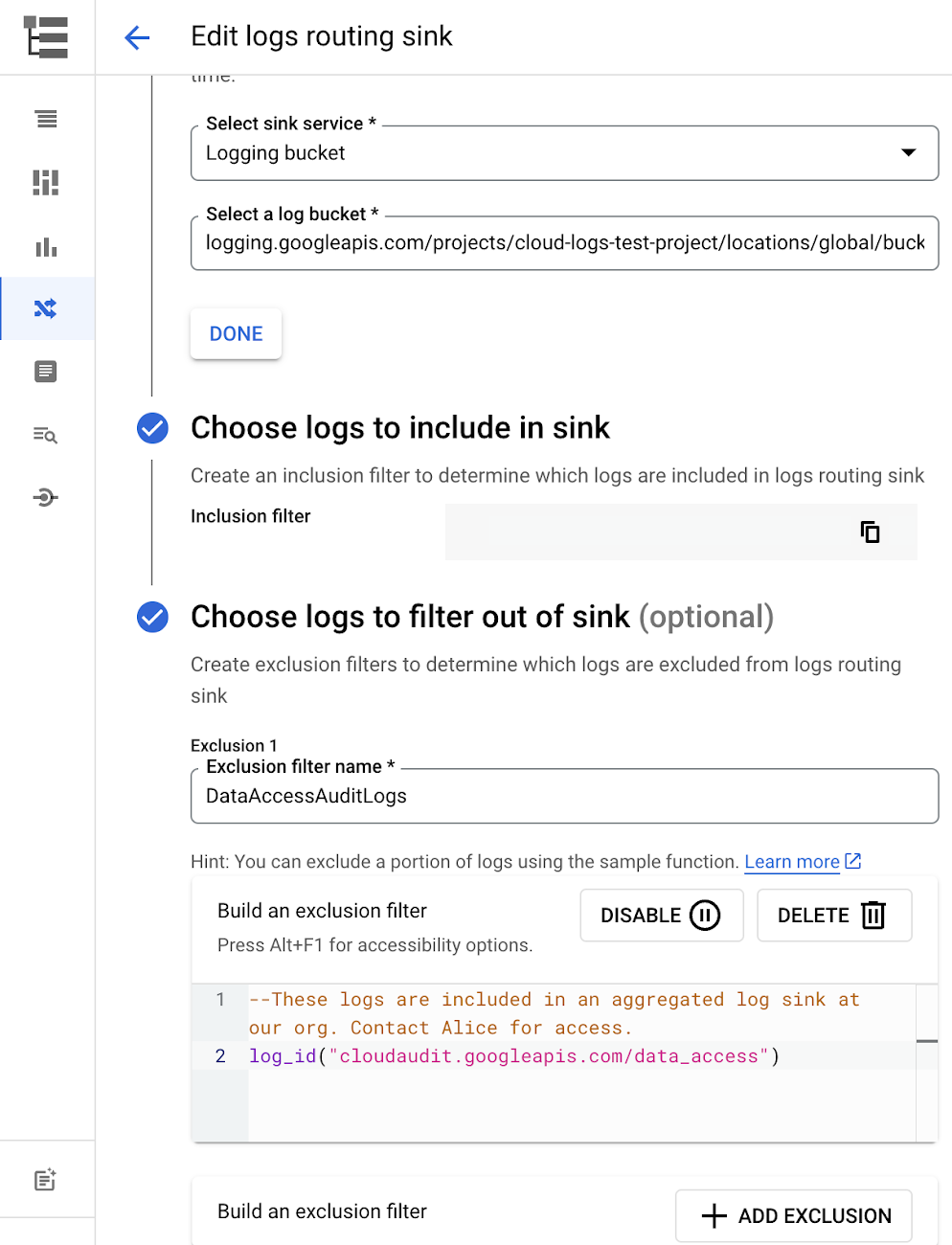
Similarly, if you’re paying to store logs in an external log management tool, you don’t have to save these same logs to Cloud Logging. We recommend keeping a small set of system logs from GCP services such as GKE in Cloud Logging in case you need assistance from GCP support but what you store is up to you, and you can still export them to the destination of your choice!
Another powerful tool to reduce log volume is to sample a percentage of chatty logs. This can be particularly useful with 2XX log balancer logs, for example. This can be a powerful tool, but we recommend you design a sampling strategy based on your usage, security and compliance requirements and document it clearly.
Step 3: Optimize costs over the lifecycle of your logs
Another option to reduce costs is to avoid storing logs for more time than you need them. Cloud Logging charges based on the monthly log volume retained per month. There’s no need to switch between hot and cold storage in Cloud Logging; doubling the default amount of retention only increases the cost by 2%. You can change your custom log retention at any time.
If you are storing your logs outside of Cloud Logging, it is a good idea to compare the cost to retain logs and make a decision.
Step 4: Setup alerts to avoid surprise bills
Once you are confident that the volume of logs being routed through log sinks fit in your budget, set up alerts so that you can detect any spikes before you get a large bill. To alert based on the volume of logs ingested into Cloud Logging:
- Go to the Logs-based metrics page. Scroll down to the bottom of the page and click the three dots on “billing/bytes_ingested” under System-defined metrics.
- Click “ Create alert from metric”
- Add filters (For example: use resource_id or project_id. This is optional).
- Select the logs based metric for the alert policy.
You can also set up similar alerts on the volume for log sinks to Pub/Sub, BigQuery or Cloud Storage.
Conclusion
One final way to stretch your observability budget is to use more Cloud Operations. We’re always working to bring our customers the most value possible for their budget such as our latest feature, Log Analytics, which adds querying capabilities but also makes the same data available for analytics, reducing the need for data silos. Many small customers can operate entirely on our free tier. Larger customers have expressed their appreciation for the scalable Log Router functionality available at no extra charge that would otherwise require an expensive event store to process data. So it’s no surprise that a 2022 IDC report showed that more than half of respondents surveyed stated that managing and monitoring tools from public cloud platforms provide more value compared to third-party tools. Get started with Cloud Logging and Monitoring today.

6357
Of your peers have already downloaded this article
3:30 Minutes
The most insightful time you'll spend today!
Application programming interfaces, or APIs, are the way software talks to other software so by definition, they’re a technology that connects systems.
Many enterprise leaders think of them primarily in these terms. For example, 57 percent of respondents to Google’s Enterprise Digital Maturity Assessment Tool, Apigee Compass, characterize APIs as systems integration technology.
But APIs are much more. They’re interfaces that enable developers to repeatedly leverage data, functions, and applications to build new products and services. They’re how a business expresses itself via software, and they enable that business to rapidly expand into new contexts or adapt to meet changing user needs and preferences.
Take ridesharing apps. They exist partly because they can leverage existing capabilities made available via others’ APIs. When people order a car, a ridesharing app leverages services such as Google Maps APIs for navigation. In turn, those ridesharing companies express their businesses as APIs. This lets developers build ridesharing into new experiences, such as allowing an end user to order a ride via a voice assistant. When the user pays for a ride with a given digital payments platform, an API enables that transaction too.
Download the E-book and learn quick tricks on you can leverage APIs to delight your customers.
More Relevant Stories for Your Company




Start Your Serverless Expeditions Now!
Google Cloud's fully managed serverless platform like Cloud Run helps build and run highly scalable containerized applications. In traditional scenarios, over or under-provisioning enterprise applications can result in outages and cost hurdles. Severless Experts at the Google Cloud succinctly breakdown what serverless means for an organization and how Engineering Managers



Building a Powerful Digital Payments Solution
See how the Payeezy business platform, which enables merchants to establish and grow their eCommerce business, was set up and how it works. The platform enables the exposure of First Data services, processes, and data to partners. The Payeezy API provides all the tools partners need to set up payments

Managing the API Lifecycle: Design, Delivery, and Everything in Between
Digital is disrupting every industry. From drugstore chains to banks to telcos, businesses are becoming software companies and adopting modern software practices. Why? If they don’t adapt to a new market reality, they will fail. As the business context is changing so is the technology stack. Enterprise application architectures are



Learn Modern App Development Practices to Ship Software Faster
Cloud-native, Kubernetes, Serverless have been the hottest and most widely discussed topics given the velocity and agility benefits. Learn more about how you can leverage these modern app development practices to ship software faster, while reducing costs and improving security and compliance. Learn how Google Cloud lets you modernize existing
