





How Toyota’s Google Cloud-powered Voice Assistant Gives a Turboboost to Drivers’ Experience

4807
Of your peers have already read this article.
2:00 Minutes
The most insightful time you'll spend today!
Over the decades, technology has helped us organize large amounts of physical information in ways that are streamlined, efficient, and easily accessible. Rows upon rows of encyclopedias are no longer needed; simply punch in or speak a query into Google Search and find numerous results at your fingertips. There’s no need to haul around cases of CDs or cassettes either, when you can access hundreds of thousands of songs on music streaming services.
We wanted to bring that same level of accessibility to one specific type of publication: the printed car manual. Here’s how we shifted the paper manual to become an easy-to-access, voice-activated digital experience for owners of the all-new Sienna. It’s helped this resource become just as modern and useful as Toyotas themselves.
Putting cloud technology in the driver’s seat
Far too often, the printed car manual remains unused, collecting dust in the glove compartment—that is, until it’s needed during a roadside emergency or to solve the meaning of a mysterious light popping up on the dashboard. Even then, thumbing through hundreds of pages during high-stakes moments can be stressful. On top of that, these manuals can be expensive to print and update.
Digital versions, such as a PDF file, are a nice start. But, they’re often little more than reformatted flat documents. In poor visual conditions on the side of a road, the last thing a driver wants to do is squint at a phone or scroll through pages of tiny text. And similar to printed manuals, digital versions don’t facilitate ongoing, real-time conversations between drivers and automakers when it matters the most; they’re often only text and pictures, and at best, schematic drawings.
With that in mind, we set out to elevate and personalize the car manual by creating a voice-activated digital owner’s manual experience, all powered by Google Cloud. A voice-based assistant was the clear choice because, as it felt like the most intuitive, natural option, especially while driving. In fact, 51% of U.S. adults have used a voice assistant while driving, and 95% of all drivers expect to use a voice assistant in the next three years.
We’re now putting this technology on the road by powering the Toyota Driver’s Companion for the all-new 2021 Toyota Sienna model. Accessible through the existing Toyota app, this companion provides real-time assistance, any time of the day. Drivers can ask questions and the companion will efficiently provide helpful answers in convenient ways, from voice to 3D walkthroughs and explorable environments.
What a modern car manual should do
The Toyota Driver’s Companion has interactive features to help drivers discover the Sienna’s dashboard, set up the car’s interior and exterior appearance, better understand vehicle maintenance, and explore Dynamic Radar Cruise Control, Lane Departure Alert and other features.
Here are a few other additional key features to call out within the Toyota Driver’s Companion:
- An easily accessible virtual voice through the Toyota Driver’s Companion lets app users ask personal questions about their 2021 Sienna such as “what’s the height of my car?” and receive immediate answers either by voice, display or interactive input.
- The manual automatically connects with the purchased vehicle’s VIN number to create a completely personalized experience, curated specifically for the driver. For example, if an unfamiliar light on the dashboard pops up, the Toyota Driver’s Companion can help identify the light’s meaning.
- Interactive hotspots throughout the vehicle’s interior let drivers explore the cabin virtually. Drivers can discover button functionalities, find specific dials, and learn more about car functions, such as how to slide seats or open doors, to become acclimated with their new vehicle.
To bring this experience to life, we tapped into some of our key Google Cloud solutions:
- APIs powered by Google Cloud artificial intelligence technology make accessing specific vehicle information easy and effortless, by leveraging Google’s natural language processing:
- Google Cloud DialogFlow API serves as the decision tree that gives intelligence for both finding an answer for a question, i.e., how the Companion responds to the end user’s questions.
- One of our Text-to-Speech APIs—called Wavenet—creates the Companion’s realistic voice.
- And finally, our Speech-to-Text API “listens” to the user’s voice and finds the correct information to craft responses. That means a driver can ask a question multiple ways, and the Companion will still respond with the right answer.
Our Firebase mobile app dev platform gleans analytic insights that help improve the overall experience and services for OEMs and drivers alike.https://www.youtube.com/embed/66QxWS-PzIM?enablejsapi=1&
We’re encouraging better consumer experiences by providing faster access to fresh information, in a natural, accessible format—voice. But these new voice-activated experiences aren’t only an opportunity to help out drivers; it’s also about strengthening connections between drivers, their vehicles, and automakers, too.
Our hope is that through this information exchange, drivers can provide feedback on the most frequently misunderstood features, enabling OEMs to address questions early on. By understanding the most requested features, OEMs can also predict and inform driver questions about features. We’re incredibly excited to help make the driver’s experience more connected and helpful.
Google Introduces ML-based Predictive Autoscaling to Forecast Capacity and Match Scaling Demands
4978
Of your peers have already read this article.
3:00 Minutes
The most insightful time you'll spend today!
At Google Cloud, we believe you get most benefits from the cloud when you scale infrastructure based on changing demand. Compute Engine allows you to configure autoscaling to save costs during periods of low demand, and add capacity to support peak loads.
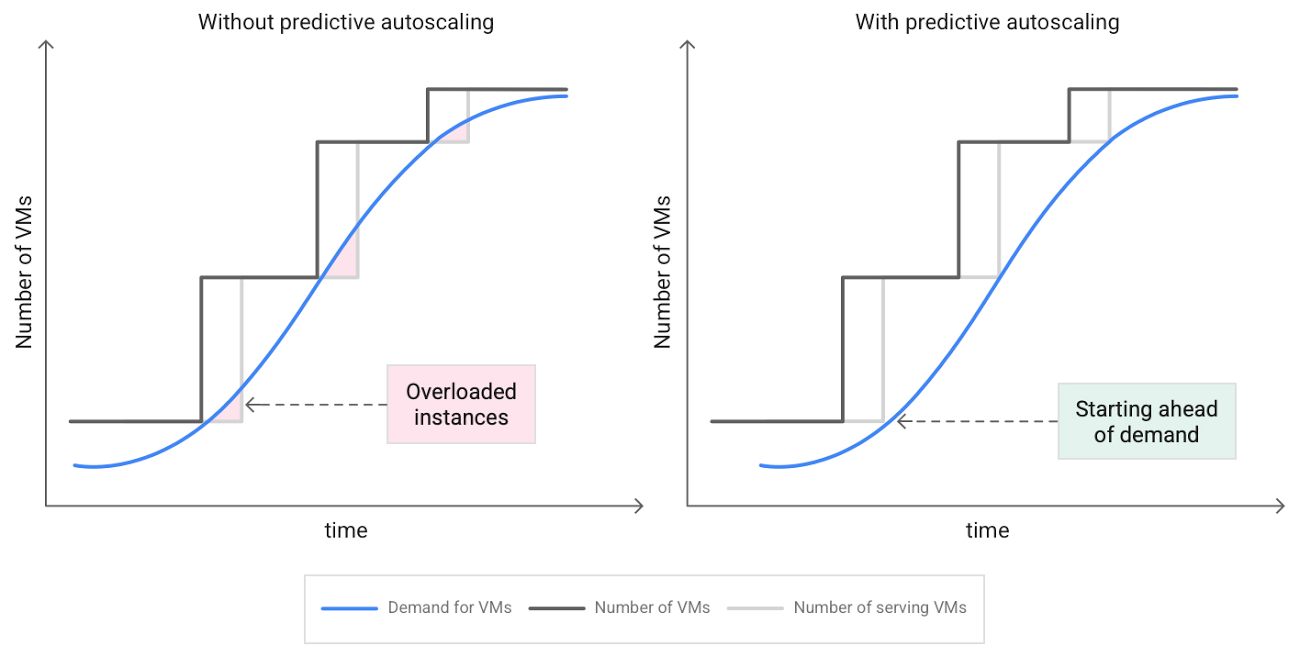
When you use a managed instance group (MIG), you can have an autoscaler automatically create or delete virtual machine (VM) instances based on increases or decreases in load. However, if your application takes several minutes to initialize, creating VMs in response to growing load might not increase your application’s capacity quickly enough. For example, if there’s a large increase in load (like when users first wake up in the morning), some users might experience delays while your application is initializing on new instances.
A good way to solve this problem would be to create VMs ahead of demand so that your application has enough time to initialize beforehand. This requires knowing upcoming demand. If only we could predict the future… Well, now we can!
Introducing predictive autoscaling
Predictive autoscaling uses Google Cloud’s machine learning capabilities to forecast capacity needs. It creates VMs ahead of growing demand allowing enough time for your application to initialize.
How does it work?
Predictive autoscaling uses your instance group’s CPU history to forecast future load and calculate how many VMs are needed to meet your target CPU utilization. Our machine learning adjusts the forecast based on recurring load patterns for each MIG.
You can specify how far in advance you want autoscaler to create new VMs by configuring the application initialization period. For example, if your app takes 5 minutes to initialize, autoscaler will create new instances 5 minutes ahead of the anticipated load increase. This allows you to keep your CPU utilization within the target and keep your application responsive even when there’s high growth in demand.
Many of our customers have different capacity needs during different times of the day or different days of the week. Our forecasting model understands weekly and daily patterns to cover for these differences. For example, if your app usually needs less capacity on the weekend our forecast will capture that. Or, if you have higher capacity needs during working hours, we also have you covered.
Why should you try it?
Predictive autoscaling continuously adapts forecasted capacity to best match upcoming demand. Autoscaler checks the forecast several times per minute and creates or deletes VMs to match its prediction. The forecast itself is updated every few minutes to match recent load trends so if your growth rate is higher or lower than usual we will adjust the forecast accordingly. This gives you capacity needed to cover peak load while saving on cost when demand goes down.
You can start using predictive autoscaling without worry as it’s fully compatible with the current autoscaler. Autoscaler will calculate enough VMs to cover both forecasted as well as real-time CPU load—whichever is higher. This works with other autoscaling features as well: you can scale based on schedule, your Load Balancer request target or Cloud Monitoring metrics. Autoscaler provides enough capacity to all of your configurations by taking the highest number of VMs needed to meet all your targets.
Getting started
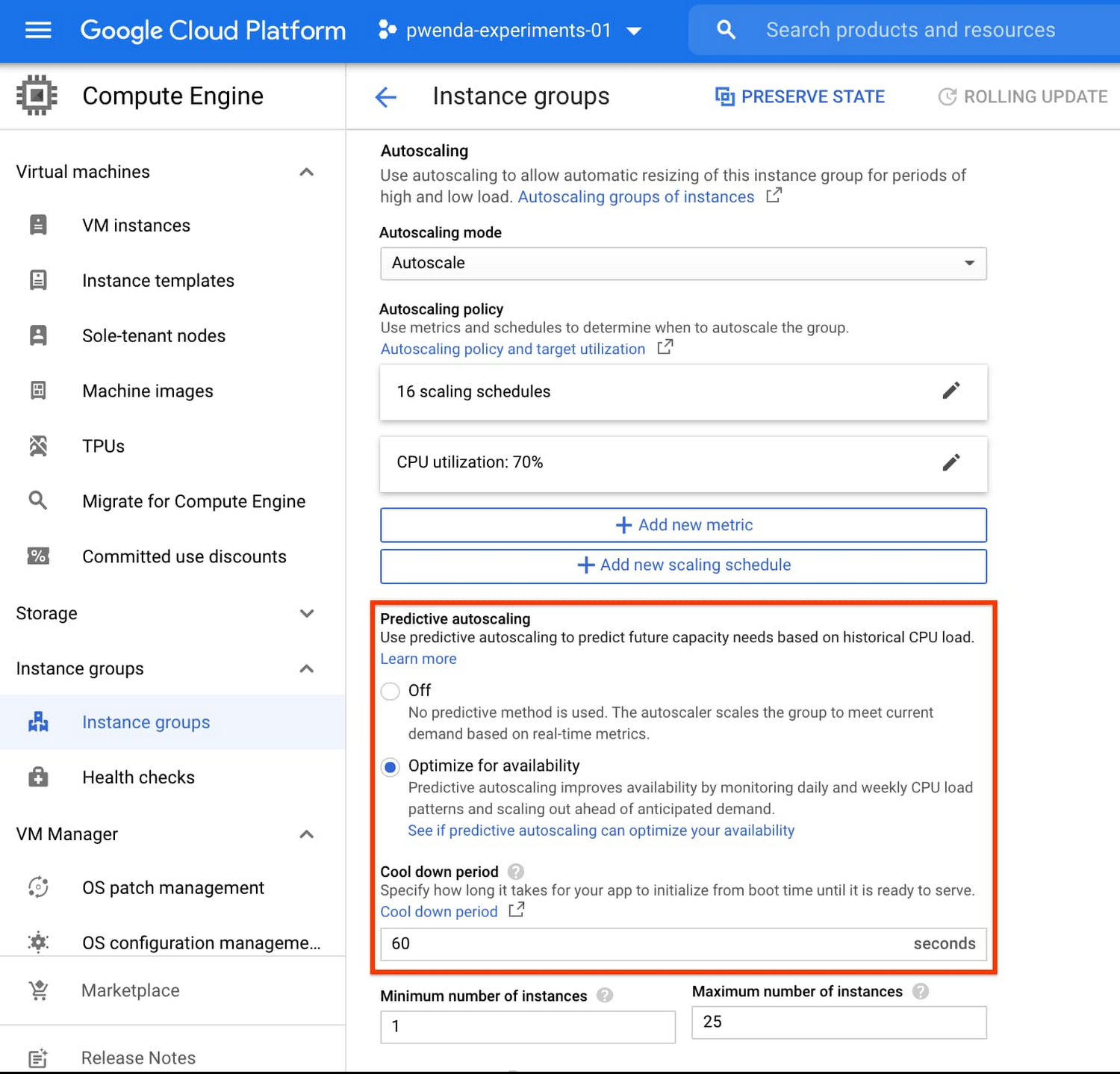
You can enable predictive autoscaling in the Google Cloud Console. Select an autoscaled MIG from the instance groups page and click Edit group. Change predictive autoscaling configuration from Off to Optimize for availability.
To better understand whether predictive autoscaling is good for your application, click the link See if predictive autoscaling can optimize your availability. This will show you a comparison of the last seven days with your current autoscaling configuration vs. with predictive autoscaling enabled.
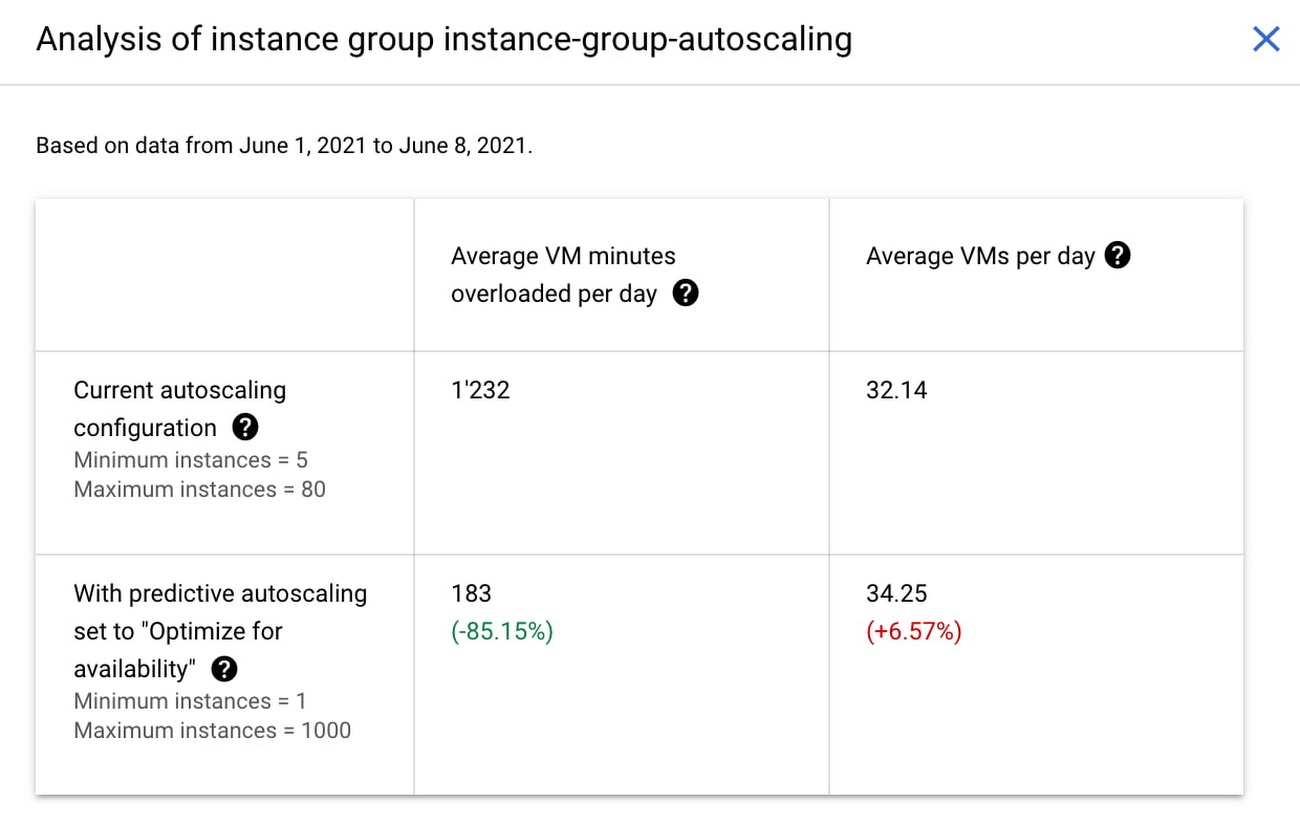
In the above chart,
- Average VM minutes overloaded per day shows how often your VMs exceed your CPU utilization target. This happens when demand is higher than available capacity. Predictive autoscaling can reduce this by starting VMs ahead of anticipated load.
- Average VMs per day is a proxy for cost. This shows how much additional VM capacity you need to keep your CPU utilization within the target you have set. You can optimize your cost by adjusting Minimum instances andCPU utilization as explained below.
Optimizing your configuration
Make sure your Cool down period reflects how long it takes for your application to initialize from VM boot time until it’s ready to serve the load. Predictive autoscaling will use this value to start VMs ahead of forecasted load. If you set it to 10 minutes (600 seconds) your VMs will start 10 minutes before the load is expected to increase.
Review your autoscaling CPU utilization target and Minimum number of instances. With predictive autoscaling you no longer need a buffer to compensate for the time it takes for a VM to start. If your application works best at 70% CPU utilization you don’t need to set target to a much lower value as predictive autoscaling will start VMs ahead of usual load. A higher CPU utilization and lower Minimum number of instances allows you to reduce the cost as you don’t need to pay for additional capacity to prepare for growing demand.
Try predictive autoscaling today
Predictive autoscaling is generally available across all Google Cloud regions. For more information on how to configure, simulate and monitor predictive autoscaling, consult the documentation.
Google Cloud Platform Gives Us 5x the Processing Power to Analyze Physician Performance at 75% Lower Cost

6719
Of your peers have already read this article.
6:30 Minutes
The most insightful time you'll spend today!
Patients about to undergo a healthcare procedure understandably want the best medical professionals they can get. But how can they know which doctors have had the most experience and the best outcomes with that particular procedure? How can they make an informed decision about which doctor to select when the information they have is limited to the doctor’s practice area and subjective reviews from other patients?
MD Insider is working to solve that problem using machine learning (ML) to objectively analyze doctor performance. By analyzing data from thousands of institutions and millions of doctor-patient interactions and medical events, MD Insider identifies physician performance insights based on their experience and outcomes. Insights are then integrated into a triage engine, that enables consumers to search for and schedule appointments with providers who meet their clinical criteria and convenience preferences, such as insurances accepted, office hours, locations, and language.
MD Insider also offers robust data APIs to help health systems, health plans, and employers reduce costs and improve quality of care. Payers use the APIs to curate high-quality provider networks and manage provider directories. Examples of MD Insider’s data APIs include Provider Experience and Share of Practice metrics, Provider Quality and Outcomes, Network Modeling, Expert Clinical Search Taxonomy, Find a Provider, Acute-Care Hospital Quality, and Provider and Facility Metadata.
“We use Google Cloud Platform the way the cloud was supposed to be used. By comparison, other cloud providers feel like you’re renting somebody else’s data center.”
—Ed Holsinger, Lead Data Engineer and Head of Data Science, MD Insider
MD Insider is continuously ingesting the latest performance data about physicians and analyzing billions of rows of data. Requiring constant scalability, the company was born in the cloud; however, it had difficulty configuring server instances for the optimal balance of memory and CPU, and its Hadoop cluster had to be kept running 24/7. Network performance was often slow for no apparent reason. As a result, failure rates from node timeouts increased, and costs grew along with the data. MD Insider had to estimate its usage and pay up front, and received little financial benefit from sustained use commitments.
Knowing that data would continue to grow, MD Insider decided to move its data services — the most demanding and complex portion of its infrastructure — to Google Cloud Platform (GCP), and took advantage of GCP managed services for container management and big data analytics.
“One of the reasons we decided to move to Google Cloud Platform is because it feels like a unified, well-designed cloud architecture and pricing model,” says Ed Holsinger, Lead Data Engineer and Head of Data Science at MD Insider. “We use Google Cloud Platform the way the cloud was supposed to be used. By comparison, other cloud providers feel like you’re renting somebody else’s data center.”
“Moving to Google Cloud Platform and using Kubernetes Engine gave us 5x the processing power for analyzing physician performance at 75% less cost. Our data scientists have more power than ever before to generate insights for our customers.”
—Ed Holsinger, Lead Data Engineer and Head of Data Science, MD Insider
5x the performance, 75% less cost
MD Insider now uses Kubernetes Engine to automate container management and deploy clusters in minutes with just a few clicks. When hundreds of machines are required to analyze a large dataset, automation in Kubernetes Engine deploys ML models as containers, each of which manages the full lifecycle of its task, including scaling up resources, deploying results, and scaling back down when the task is finished. It’s easy for MD Insider to specify exactly how much CPU and memory each container needs, helping maximize performance while reducing costs.
“Moving to Google Cloud Platform and Kubernetes Engine gave us 5x the processing power for analyzing physician performance at 75% less cost,” says Ed. “Our data scientists have more power than ever before to generate insights for our customers. Data scoring jobs that used to take three business days now take four hours.”
Adds Galen Meurer, Senior Software Engineer at MD Insider: “Even if all Google Cloud Platform had to offer was Kubernetes Engine, I would still want to use it. Previously we spent up to 30% of our time managing our container infrastructure, which we can now use for product development.”
A foundation for data science
MD Insider was happy to find that GCP offers a wide variety of managed services. For example, the company is supplementing its Kubernetes Engine clusters with BigQuery for its big data masters and selection jobs, enabling scientists to analyze new and different types of data as well as analyze larger datasets in less time. MD Insider also uses Cloud Storage for big data staging and Cloud Dataproc to run managed Apache Spark clusters for data processing.
“Google Cloud Platform gives us an incredibly powerful cloud architecture for data engineering and data science,” says Eric Wilson, CEO of MD Insider. “That gives our scientists independence, they can do what they need to do without waiting and with no contention between them.”
A developer-friendly platform
Migrating its data services was such a success that MD Insider decided to move the rest of its infrastructure to GCP, including the front end for its web application. Since the migration, MD Insider has experienced no unplanned downtime on GCP, allowing it to easily meet the 99.5% uptime SLA it promises to customers. It’s also taking advantage of Build Triggers in Kubernetes Engine to automate container builds and reduce build times by more than 40%. Production code can be updated in seconds, with no impact to end users other than making new features available.
“GCP has simplified our workflow in so many ways, from intelligent load balancing to content delivery and automating builds,” says Matthew Frey, Software Engineer. “Everything on GCP is cohesive and developer friendly, with a superior UI and better network performance than other cloud providers.”
Ryan Beaini, Senior Software Engineer at MD Insider, agrees: “Since we moved to GCP, our developers are definitely happier. The pain and the headaches we experienced because of the limitations of our previous toolset all went away.”
“We’re a small company, but what we’re doing is incredibly important. We’re helping people make decisions about healthcare providers that could impact their lives and even be life-saving. Google Cloud Platform is helping us make our mission bigger, better, and brighter.”
—Eric Wilson, CEO, MD Insider
Securing billions of rows of clinical and non-clinical healthcare data
As a healthcare technology company, MD Insider processes billions of rows of clinical and non-clinical healthcare data. To control user access to GCP, it uses Identity & Access Management (IAM) along with Yubico YubiKeys for hardware-based two-factor authentication when logging into Google Workspace. MD Insider takes comfort that GCP encrypts data at rest by default, and encrypts and authenticates data in transit when data moves outside physical boundaries not controlled by Google or on behalf of Google.
“On GCP, everything that we need to be encrypted for compliance purposes is encrypted, which is fantastic,” says Eric. “When I tell our potential clients and partners about the resources that Google has dedicated to security, it gives them the confidence that their data will be protected.”
Transforming how teams work
As a growing company, MD Insider must collaborate seamlessly between offices in California, Colorado, and Illinois. It relies on Google Workspace for communication and productivity, using Docs, Sheets, and Slides to drive the business. Employee and team files are stored in Drive, and meetings are conducted via Google Meet with Chromebox for Meetings videoconferencing hardware kits. Google Workspace also helps MD Insider maintain information security by authenticating email domains with digital signatures in Gmail and scanning outgoing email using Gmail Data Loss Prevention (DLP).
“I use Google Workspace every day, and everyone else here does too,” says Eric. “Team Drives are a big time saver for us. We’ve let our previous office software expire, because there’s no need to pay for those licenses anymore.”
Promoting healthcare transparency
With GCP helping MD Insider increase velocity and momentum, the company is making exciting progress. For example, it has entered into a strategic partnership with Zelis Healthcare, which will use MD Insider’s API to provide insights for a next-gen analytics platform that will give health plans unprecedented transparency around physician performance.
“We’re a small company, but what we’re doing is incredibly important,” says Eric. “We’re helping people make decisions about healthcare providers that could impact their lives and even be life-saving. Google Cloud Platform is helping us make our mission bigger, better, and brighter.”
*Google Workspace was formerly known as G Suite prior to Oct. 6, 2020.
Reasons to Leverage Vertex AI Custom Training Service

2942
Of your peers have already read this article.
6:00 Minutes
The most insightful time you'll spend today!
At one point or another, many of us have used a local computing environment for machine learning (ML). That may have been a notebook computer or a desktop with a GPU. For some problems, a local environment is more than enough. Plus, there’s a lot of flexibility. Install Python, install JupyterLab, and go!
What often happens next is that model training just takes too long. Add a new layer, change some parameters, and wait nine hours to see if the accuracy improved? No thanks. By moving to a Cloud computing environment, a wide variety of powerful machine types are available. That same code might run orders of magnitude faster in the Cloud.
Customers can use Deep Learning VM images (DLVMs) that ensure that ML frameworks, drivers, accelerators, and hardware are all working smoothly together with no extra configuration. Notebook instances are also available that are based on DLVMs, and enable easy access to JupyterLab.
Benefits of using the Vertex AI custom training service
Using VMs in the cloud can make a huge difference in productivity for ML teams. There are some great reasons to go one step further, and leverage our new Vertex AI custom training service. Instead of training your model directly within your notebook instance, you can submit a training job from your notebook.
The training job will automatically provision computing resources, and de-provision those resources when the job is complete. There is no worrying about leaving a high-performance virtual machine configuration running.
The training service can help to modularize your architecture. As we’ll discuss further in this post, you can put your training code into a container to operate as a portable unit. The training code can have parameters passed into it, such as input data location and hyperparameters, to adapt to different scenarios without redeployment. Also, the training code can export the trained model file, enabling working with other AI services in a decoupled manner.
The training service also supports reproducibility. Each training job is tracked with inputs, outputs, and the container image used. Log messages are available in Cloud Logging, and jobs can be monitored while running.
The training service also supports distributed training, which means that you can train models across multiple nodes in parallel. That translates into faster training times than would be possible within a single VM instance.
Example Notebook
In this blog post, we are going to explain how to use the custom training service, using code snippets from a Vertex AI example. The notebook we’re going to use covers the end-to-end process of custom training and online prediction. The notebook is part of the ai-platform-samples repo, which has many useful examples of how to use Vertex AI.
Custom model training concepts
The custom model training service provides pre-built container images supporting popular frameworks such as TensorFlow, PyTorch, scikit-learn, and XGBoost. Using these containers, you can simply provide your training code and the appropriate container image to a training job.
You are also able to provide a custom container image. A custom container image can be a good choice if you’re using a language other than Python, or are using an ML framework that is not supported by a pre-built container image. In this blog post, we’ll use a pre-built TensorFlow 2 image with GPU support.
There are multiple ways to manage custom training jobs: via the Console, gcloud CLI, REST API, and Node.js / Python SDKs. After jobs are created, their current status can be queried, and the logs can be streamed.
The training service also supports hyperparameter tuning to find optimal parameters for training your model. A hyperparameter tuning job is similar to a custom training job, in that a training image is provided to the job interface. The training service will run multiple trials, or training jobs with different sets of hyperparameters, to find what results in the best model. You will need to specify the hyperparameters to test; the range of values to explore for those hyperparameters; and details about the number of trials.
Both custom training and hyperparameter tuning jobs can be wrapped into a training pipeline. A training pipeline will execute the job, and can also perform an optional step to upload the model to Vertex AI after training.
How to package your code for a training job
In general, it’s a good practice to develop your model training code that is self-contained when especially executing them inside containers. This means the training codebase would operate in a standalone manner when executed.
Below is a template of such a self-contained, heavily-commented Python script that you can follow for your own projects too.
# Imports go hereimport tensorflow_datasets as tfdsimport tensorflow as tf…# Define the hyperparameters and constants like epochs, batch size, number of GPUs, etcparser = argparse.ArgumentParser()parser.add_argument('--lr', dest='lr',default=0.01, type=float,help='Learning rate.')parser.add_argument('--epochs', dest='epochs',default=10, type=int,help='Number of epochs.')...args = parser.parse_args()...# Prepare data loadersdef make_datasets_unbatched():# Scaling CIFAR10 data from (0, 255] to (0., 1.]def scale(image, label):image = tf.cast(image, tf.float32)image /= 255.0return image, labeldatasets, info = tfds.load(name='cifar10',with_info=True,as_supervised=True)return datasets['train'].map(scale).cache().shuffle(BUFFER_SIZE).repeat()# Build our model, compile, and train itmodel = [define your model]model.compile(loss=..., optimizer=..., metrics=...)model.fit(...)# Serialize our modelmodel.save(MODEL_DIR)
Note that the MODEL_DIR needs to be a location inside a Google Cloud Storage (GCS) bucket. This is because the training service can only communicate with that and not with our local system. Here is a sample location inside a GCS Bucket to save a model: gs://caip-training/cifar10-model where caip-training is the name of the GCS bucket.
Although we are not using any custom modules in the above code listing, one can easily incorporate them as we would normally inside a Python script. Refer to this document if you want to know more. Next up, we will review how to configure the training infrastructure, including the type and number of GPUs to use, and submit a training script to run inside the infrastructure.
How to submit a training job, including configuring which machines to use
To train a deep learning model efficiently on large datasets, we need hardware accelerators that are suited to run matrix multiplication in a highly parallelized manner. Distributed training is also common when it comes to training a large model on a large dataset. For this example, we will be using a single Tesla K80 GPU. Vertex AI supports a range of different GPUs (find out more here).
Here is how we initialize our training job with the Vertex AI SDK:
job = aiplatform.CustomTrainingJob(display_name=JOB_NAME,script_path="task.py",container_uri=TRAIN_IMAGE,requirements=["tensorflow_datasets==1.3.0"],model_serving_container_image_uri=DEPLOY_IMAGE,)
(aiplatform is aliased as from google.cloud import aiplatform)
Let’s review the arguments:
display_namerefers to a unique identifier to the training job used for easily locating it.script_pathrefers to the path of the training script to run. This is the script we discussed in the section above.container_urirefers to the URI of the container that will be used to run our training script. For this, we have several options to choose from. For this example, we will usegcr.io/cloud-aiplatform/training/tf-gpu.2-1:latest. We will use this same container for deployment as well but with a slightly changed container URI. You can find the containers available for model training here and the containers available for deployment purposes can be found here.requirementslet us specify any external packages that might be required to run the training script.model_serving_container_image_urispecifies the container URI that would be used during deployment.
Note: Using separate containers for distinct purposes like training and deployment is often a good practice, since it isolates the relevant dependencies for each purpose.
We are now all set up to submit a custom training job:
model = job.run(model_display_name=MODEL_DISPLAY_NAME,args=CMDARGS,replica_count=1,machine_type=TRAIN_COMPUTE,accelerator_type=TRAIN_GPU.name,accelerator_count=TRAIN_NGPU)
Here, we have:model_display_name that provides a unique name to identify our trained model. This comes in handy later down the pipeline when we would deploy it using the prediction service. args are our command-line arguments typically used to specify things like hyperparameter values.replica_count denotes the number of worker replicas to be used during training. machine_type specifies the type of base machine to be used during training. accelerator_type denotes the type of accelerator to be used during training. If we are interested in using a Tesla K80, then TRAIN_GPU should be specified as aip.AcceleratorType.NVIDIA_TESLA_K80. (aip is aliased as from google.cloud.aiplatform import gapic as aip.)accelerator_count specifies the number of accelerators to use. For a single host multi-GPU configuration, we would set the replica_count to 1 and then specify the accelerator_count as per our choice depending on the resource available under the corresponding compute zone.
Note that model here is a google.cloud.aiplatform.models.Model object. It is returned by the training service after the job is completed.
With this setup, we can actually start a custom training job that we can monitor. After we submit the above training pipeline, we should see some initial logs resembling this:
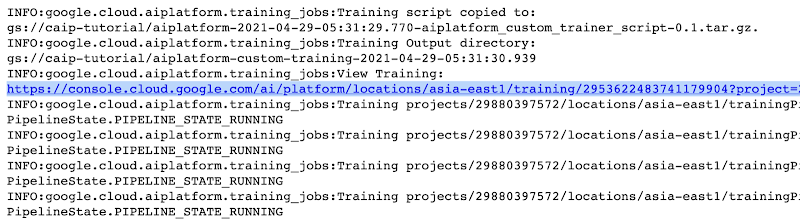
The link highlighted in Figure 2 will redirect to the dashboard of the training pipeline which looks like so:
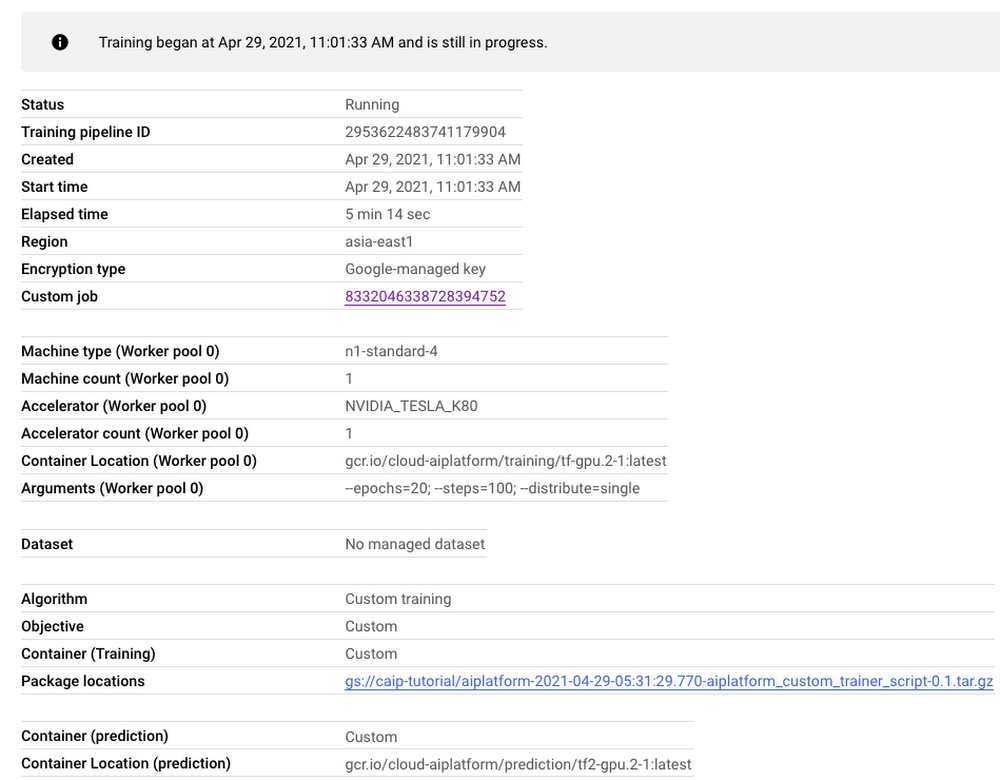
As seen in Figure 3, the dashboard provides a comprehensive summary of all the necessary artifacts related to our training pipeline. Monitoring your model training is also very important especially to catch any early training bugs. To view the training logs, we need to click the link beside the “Custom job” tab (refer to Figure 3). There also we are presented with roughly similar information as shown in Figure 3 but this time it includes the logs as well:
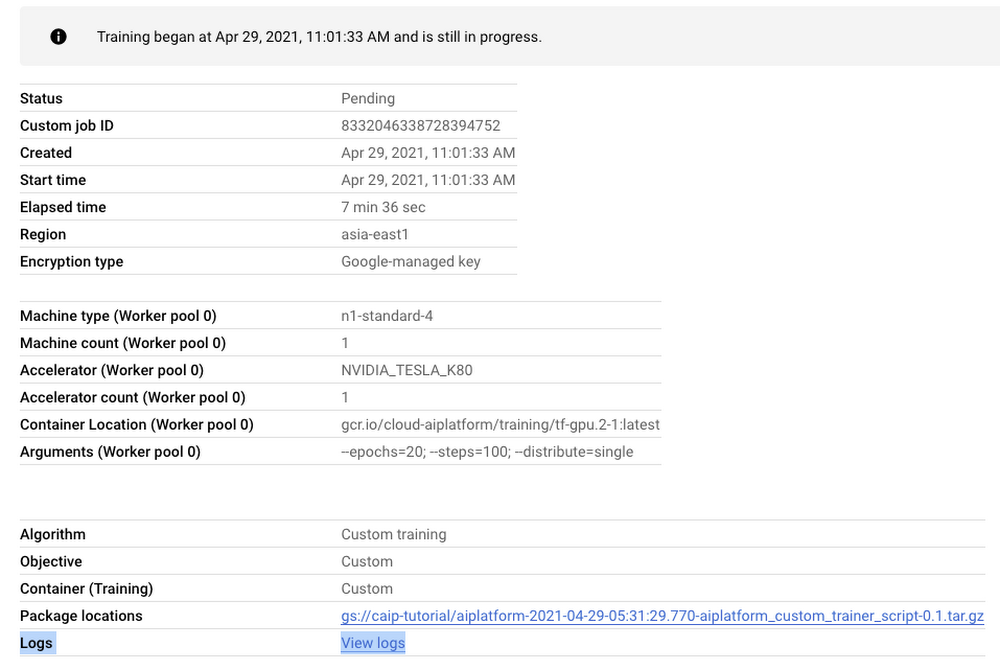
Note: Once we submit the custom training job, a training pipeline is first created to provision the training. Then inside the pipeline, the actual training job is started. This is why we see two very similar dashboards above but they have different purposes. Let’s check out the logs (which is maintained using Cloud Logging automatically):
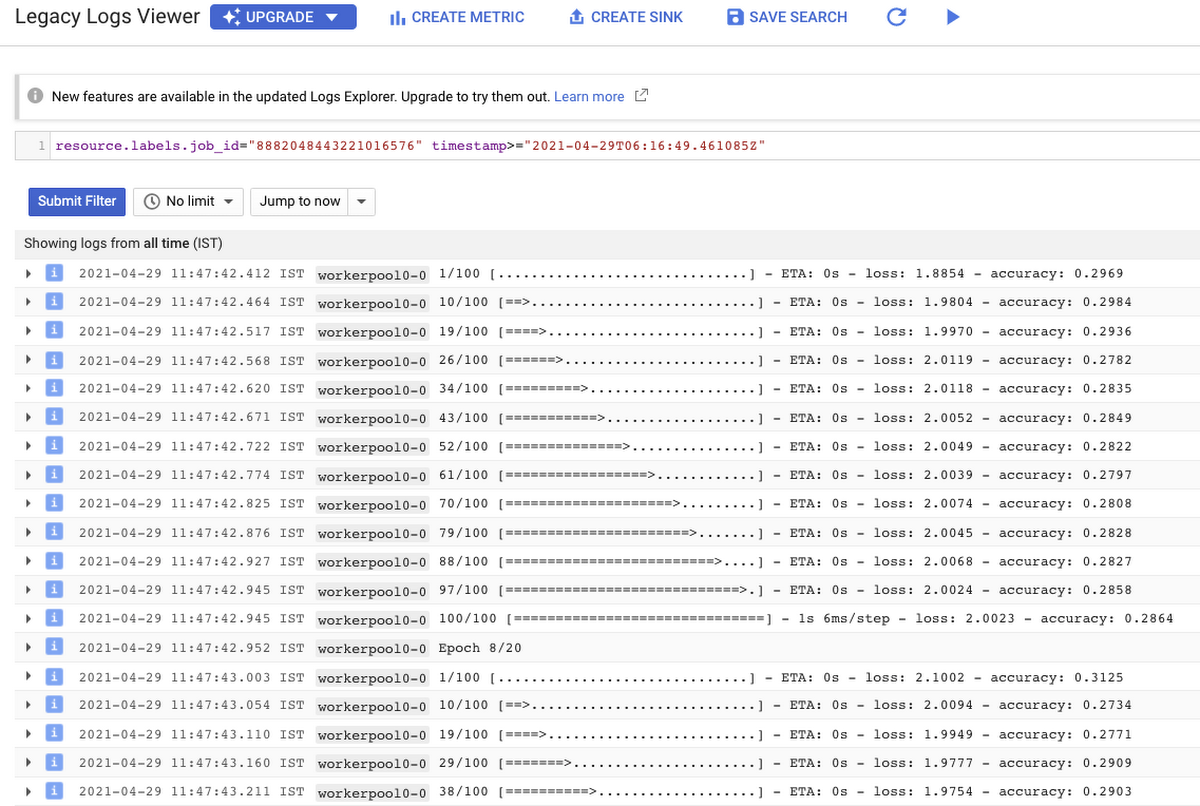
With Cloud Logging, it is also possible to set alerts on the basis of different criteria. For example, alerting the users when the training job fails or completes so that some immediate action could be taken. You can refer to this post for more details.
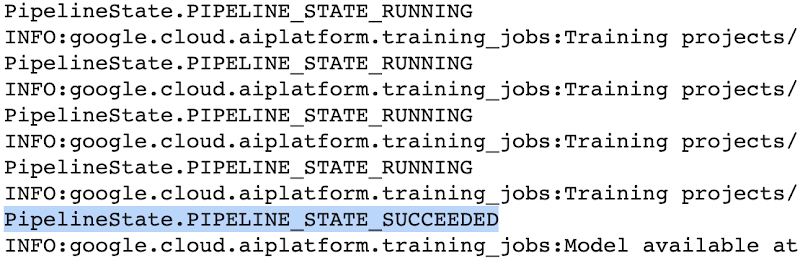
After the training pipeline is completed, on your end, you will notice the success status:
Accessing the trained model
Recall that we had to serialize our model inside a GCS Bucket in order to make it compatible with the training service. So, after the model is trained, we can access it from that location. We can even directly load it using the following line of code:
model = tf.keras.models.load_model('gs://[your-bucket-name]/[model-name]')
Note that we are referring to the TensorFlow model that resulted from training. The training service also maintains a similar “model” namespace to help us manage these models. Recall that the training service returns a google.cloud.aiplatform.models.Model object as mentioned earlier. It comes with a deploy() method that allows us to deploy our model programmatically within minutes with several different options. Check out this link if you are interested in deploying your models using this option.
Vertex AI also provides a dashboard for all the models that have been trained successfully and it can be accessed with this link. It resembles this:
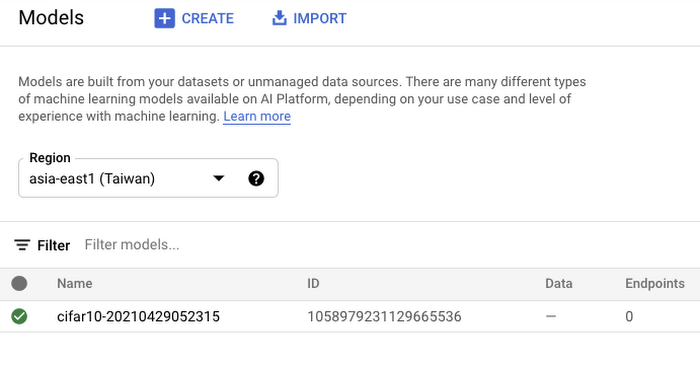
If we click the model as listed in Figure 7, we should be able to directly deploy from the interface:
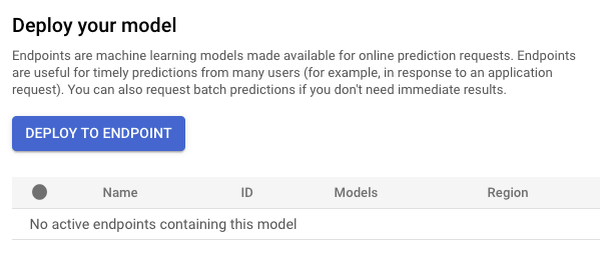
In this post, we will not be covering deployment, but you are encouraged to try it out yourself. After the model is deployed to an endpoint, you will be able to use it to make online predictions.
Wrapping Up
In this blog post, we discussed the benefits of using the Vertex AI custom training service, including better reproducibility and management of experiments. We also walked through the steps to convert your Jupyter Notebook codebase to a standard containerized codebase, which will be useful not only for the training service, but for other container-based environments. The example notebook provides a great starting point to understand each step, and to use as a template for your own projects.
Partnering with Google Cloud is the Key Behind Recent Healthcare Innovations

8826
Of your peers have already read this article.
2:00 Minutes
The most insightful time you'll spend today!
It’s simply amazing to witness how some of our systems integrators employ Google Cloud solutions to drive innovation in ways we at Google may never have considered—especially in healthcare. According to analyst firm MarketsandMarkets, the market for the Cloud in healthcare is projected to grow 43% between 2020 and 2025 to nearly $65 billion, fueled by the need for better technology infrastructures and faster digital transformation.
Healthcare and life sciences communities are looking to Google Cloud and its Service engagement model partners to improve collaboration and activate the power of medical data. These transformations deliver robust data analytics and bring a much deeper perspective into health epidemics like COVID-19 to help save lives.
In the healthcare and life sciences industry, our Google Cloud partners and customers provide constant energy and inspiration–and are the magic in some key healthcare innovations globally.
Let me show you how they are solving real-world business challenges.
Improving collaboration in Healthcare
Cloudbakers and Comanche County Memorial Hospital transitioned 2,000 employees to Google Workspace to improve collaboration, reduce costs, and increase security. By implementing a system that requires less maintenance while enabling mobile access to data and true collaboration, Comanche County Memorial Hospital saves $175,000 annually on licenses and helps medical professionals spend more time with patients.
“We chose Google Workspace because it cost a quarter of what we were paying previously, offers the kind of modern features that healthcare facilities need, and gave us data security and peace of mind.” —James Wellman, CIO, Comanche County Memorial Hospital
Accessing previously locked down medical data
Google Cloud and Quantiphi supported advances in cloud-based machine learning services to reduce infrastructure costs, unlock new paths of treatment, and dramatically reduce the amount of time it takes to evaluate scanned imagery following a stroke. John Hopkins University BIOS Division has been working on medical imaging to accelerate insights from scans on approximately 500 patients from 2,500 hours to 90 minutes, and lead to more accurate decision-making for brain injury patients that will ultimately improve medical outcomes.
“We’ve aligned closely with the goal of showing that a cloud-based, AI-driven approach is robust and that it can be performed while protecting personal PHI. In terms of costs, the cloud has definitely reduced some of the traditional financial demands of our research.” —Daniel F. Hanley, Jr., M.D., Director, Johns Hopkins University BIOS Division
Improving data access with the flexibility of Google Cloud
With the help of MediaAgility, TRIARQ migrated to Google Cloud to modernize their platform, build new applications, and expand their global footprint. With BigQuery, TRIARQ can now consolidate all transactional data, past and present, into a single location to report on specific insights and predict future data from e-prescriptions to complex revenue-cycle data and value-base analysis.
“The future of this industry will need to be a global one, and we can no longer be stuck in legacy systems if we want to survive. Having a team that is passionate about supporting us in this journey is definitely a plus point.”—Yaw Kwakye, Co-founder and Chief Architect, TRIARQ
Increasing visibility to COVID-19 outbreaks for actionable insights
As part of its response to the COVID-19 pandemic, HCA Healthcare chose to work with Google Cloud and SADA to create a national portal that increases visibility into outbreaks in 3,100 counties across the country in just 8 weeks. Now, the portal generates 30,000 new analytical views each day that can help inform private and public sector decision making for reopenings, closures, hot spots, and many other population health management activities.
“This project required deep knowledge of AI, and consumer-facing platforms, as well as healthcare. Google brought together the ideal combination of product, people, and partners. Google Cloud’s healthcare-specific products along with SADA’s expertise in the healthcare IT space made this partnership the perfect choice to move quickly and intelligently.”—Dr. Edmund Jackson, Chief Data Officer, HCA Healthcare
We’re committed to building the technology, resources, and services through Partner Advantage to help our partners address this opportunity. Looking for a solution focused partner in your region who has achieved Expertise and/or Specialization in your industry? Search our Global Partner Directory. Not yet a Google Cloud partner? Visit Partner Advantage and learn how to become one today!
Leave the Tax Filing to ML: Lending Doc AI’s Automation Classifying and Parsing IT Documents

2984
Of your peers have already read this article.
3:00 Minutes
The most insightful time you'll spend today!
In the United States, Tax Season descends upon the country every April, requiring millions of Americans to spend hours deciphering cryptic documents and performing complex math just to figure out what they owe. Wouldn’t it be grand if there was a way for a computer to take all the relevant documents and extract out exactly what the IRS is looking for? Lending Document AI from Google Cloud supports common document types used for Income Tax Filing, such as W-2s and 1099s. These advancements in machine learning technology now makes it possible to alleviate some anxiety leading up to April 15th.
Lending Document AI is a Document Understanding solution that allows for classification and parsing of documents commonly used in the mortgage lending industry. The data in these unstructured files is then converted into a structured format, which can be stored in a database or used for analysis and calculations. You can read more about the product in the announcement blog post. For this tax filing use case, we will focus on automatically classifying and parsing the 2020 editions of the following forms:
W-2
1099-DIV
1099-INT
1099-MISC
1099-NEC
This sample application creates an automated pipeline where the user can bulk upload a collection of PDFs, the Lending Document Splitter & Classifier will classify each document and send each PDF to the appropriate specialized parser to extract the data, which can then be used to calculate an individual tax return and fill out a 1040 Form.
Overview
Let’s explore how this application works. You can check out the sample code in this GitHub Repository.
Here is an outline of the architecture of this application. As you can see, it utilizes Cloud Run and Firestore in Native Mode for the web application in addition to Document AI.
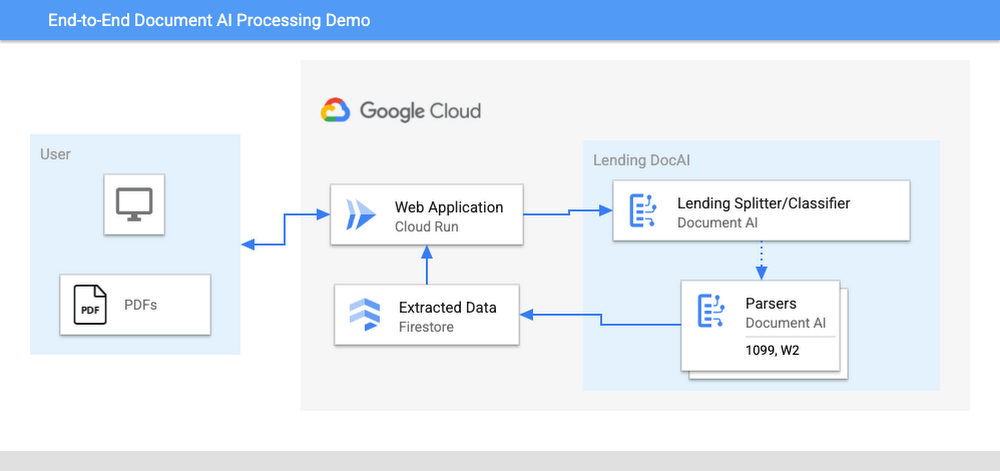
The User uploads multiple PDF files to the web application, hosted on Cloud Run.
An API call is made to the Lending Document Splitter & Classifier for each PDF file.
The output of the classifier (e.g. W-2, 1099-MISC, etc.) is then mapped to an appropriate specialized parser in the Google Cloud Project.
Each document file is sent to the appropriate specialized parser that matches the document type.
The entities are extracted by the parser processor and the data is written to Firestore.
The raw data is now retrieved from Firestore and displayed to the User showing the file classification and extracted values from each form.
The data values from all the forms are used together to calculate an individual income tax return.
The Calculated Tax Rates/Incomes/Deductions are displayed to the User in a Tabular Format matching the IRS Form 1040. The app also displays which form data was used for each field. (Some output fields use values from multiple forms, such as line 25b.)
Step-by-Step directions
Want to try this out for yourself? Here’s how you can deploy and run this application using a Google Cloud Project. You can run this in Cloud Shell (Quickstart) or on your local machine.
NOTE: The Lending Processors in this Demo are in Limited GA as of March 2022. If you have a business use case for these processors, you can fill out and submit the Document AI limited access customer request form.
Install dependencies
- Clone the GitHub Repository to get the sample code.
git clone https://github.com/GoogleCloudPlatform/document-ai-samples.git
- Enter the directory for the tax pipeline demo
cd document-ai-samples/tax-processing-pipeline-python
- Install Python and the Google Cloud SDK if they aren’t already installed.
- Install the python libraries:
pip install -r requirements.txt
- Create a new Google Cloud project, and enable billing if you don’t already have one.
- Enable the Document AI API:
gcloud services enable documentai.googleapis.com
- Setup application default credentials:
gcloud auth application-default login
Deploy demo application
- Edit the config.yaml file, adding your own Project Details docai_processor_location: us # Document AI Processor Location (us OR eu)
docai_project_id: YOUR_PROJECT_ID # Project ID for Document AI Processors
firestore:
collection: tax_demo_documents # Set with your preferred Firestore Collection Name
project_id: YOUR_PROJECT_ID # Project ID for Firestore Database - Run setup scripts to create the processors and Cloud Run app in your project. python3 setup.py
gcloud run deploy tax-demo –source . - Visit the Deployed Web Page (You should get a link from the deployment command)
Calculate Tax Returns Homepage
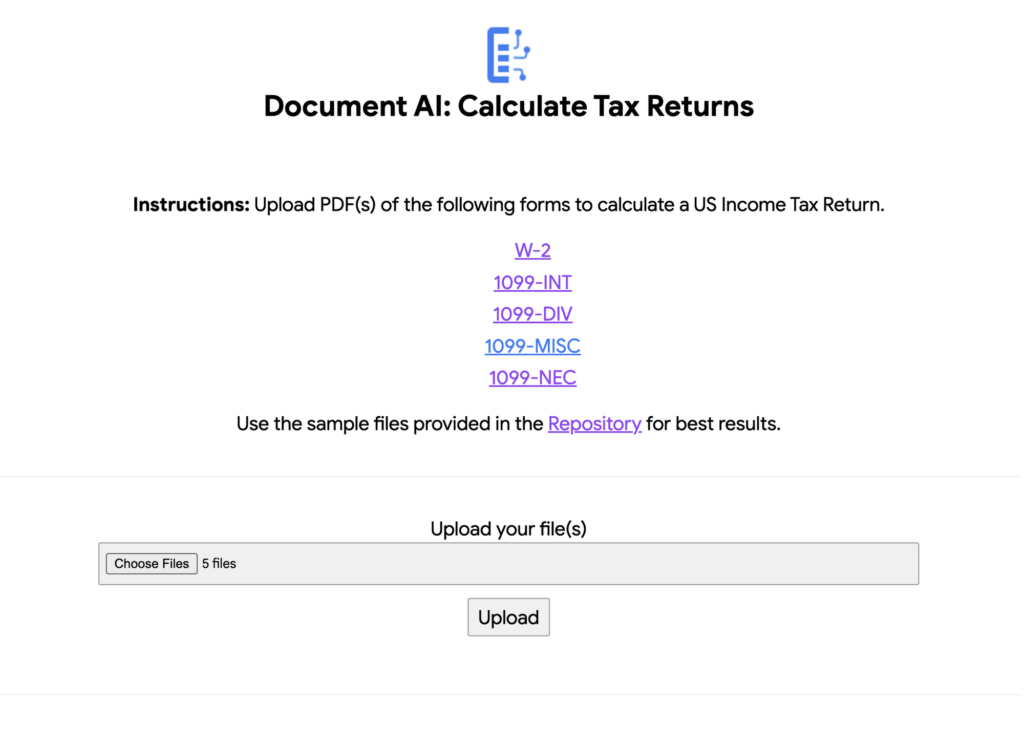
- Upload Documents. I created some sample documents you can download from the sample-docs folder of the repository.
This demo currently supports the following Document Types (2020 Editions)
W-2
1099-DIV
1099-INT
1099-MISC
1099-NEC
- Click “Upload” Button, wait for processing to complete.
The page will display the steps completed for each document file. These are also written to stdout for troubleshooting purposes.
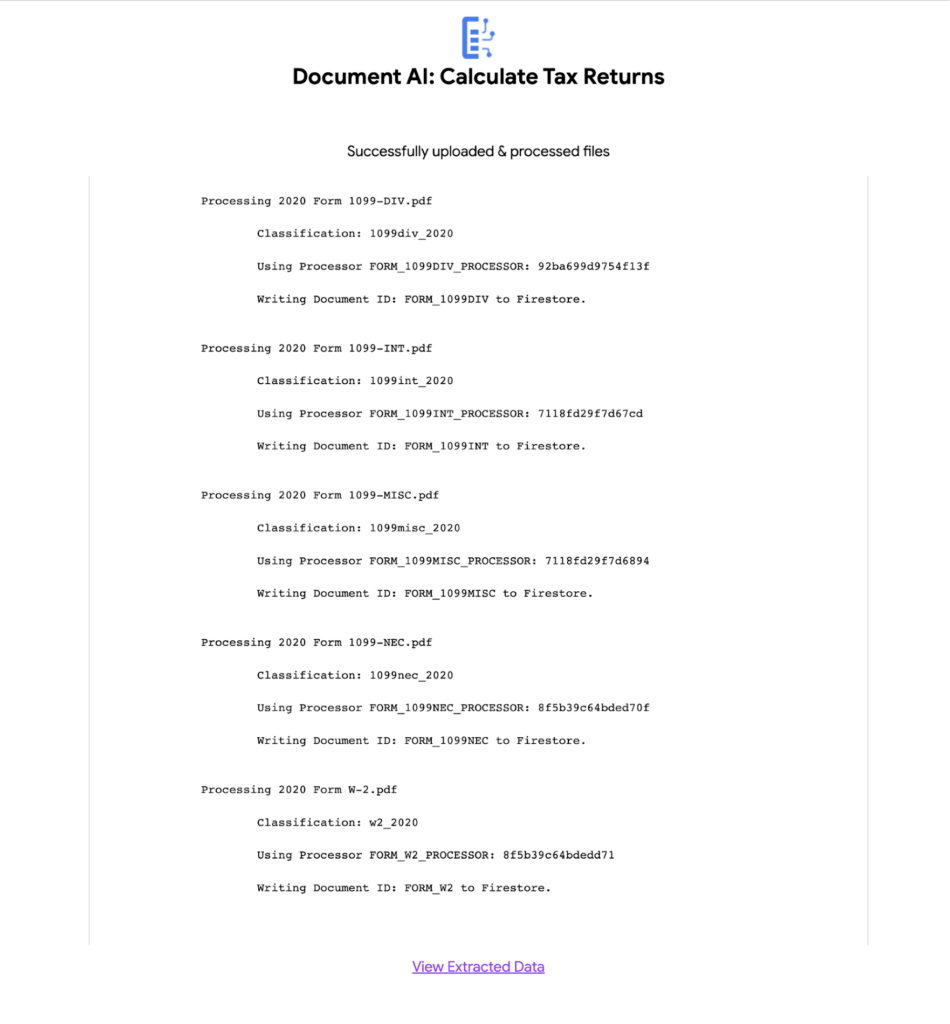
6. View the extracted values from each file.
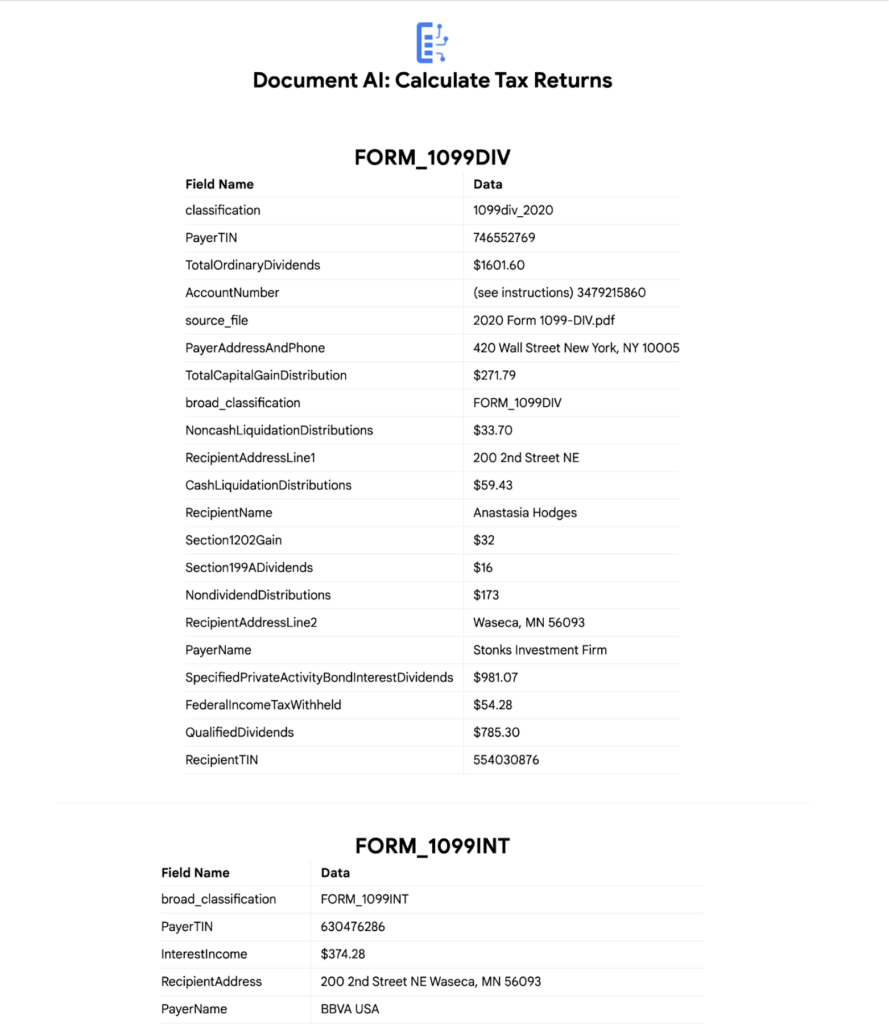
7. Click “Calculate Taxes” to see the tax calculation output
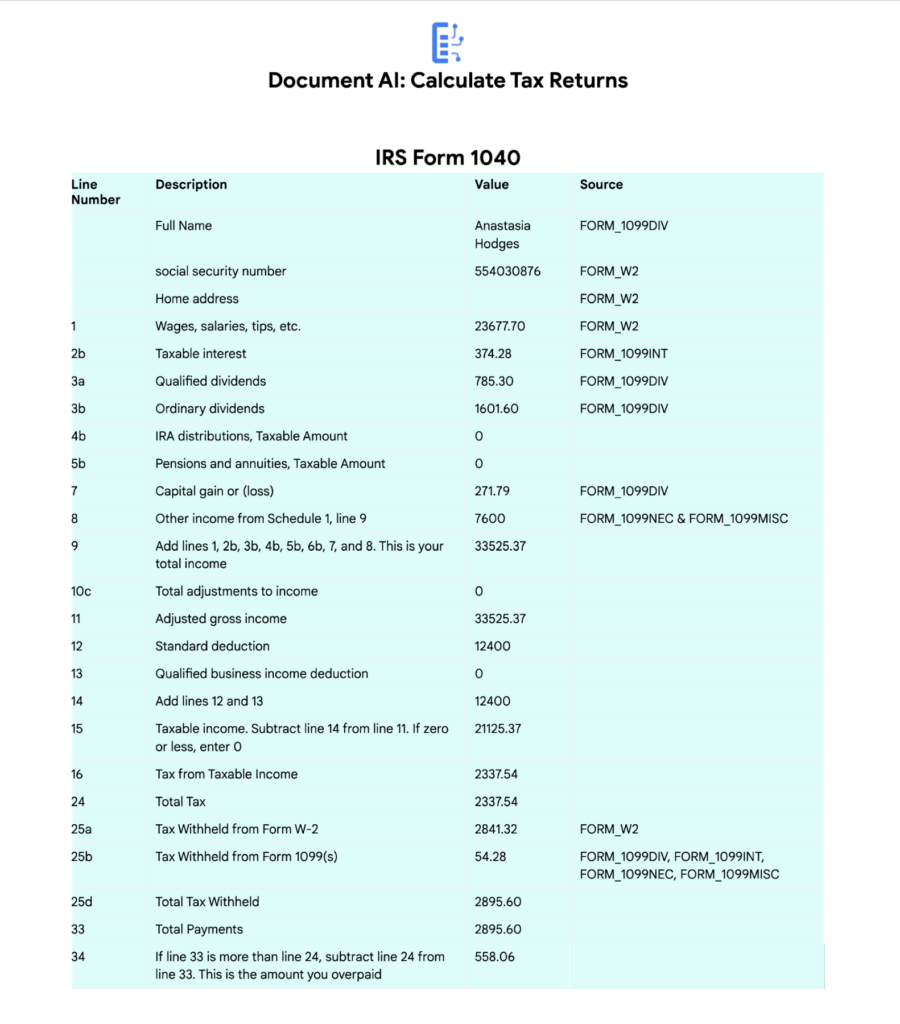
Conclusion
Warning: This is NOT financial advice, for educational purposes only.
Congratulations! You now have a fully functional tax processing application that can also be modified for use with other workflows that require data from multiple specialized documents.
The Document AI API is flexible and modular enough that most of the code in this example can be reused for any specialized processor.
Now tax returns can be filed with minimal manual effort!
If you want to learn more about Document AI, check out the Cloud Documentation and these videos:
- Getting started with the Document AI platform
- Process billions of pages and cut operational costs with DocAI
And if you want more hands-on experience, I recommend following these step-by-step codelabs to get started with the key features of Document AI:
More Relevant Stories for Your Company


Value Realization with Google Cloud for Retail SAP Data
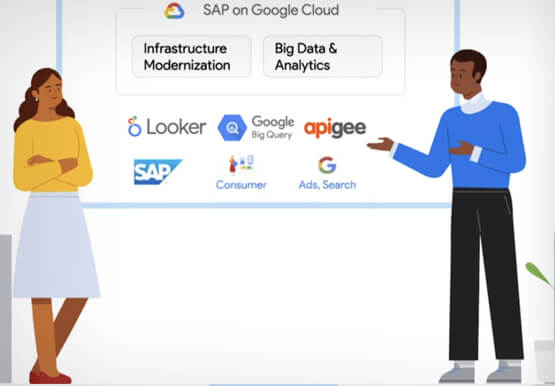
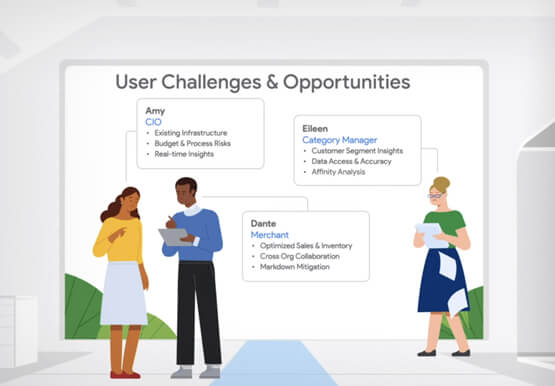
Retail engagements have changed drastically over the last few years, and by the virtue of COVID-19 pandemic, retail data and customers' expectations plummeted. To drive value and transformation across the entire value-chain retailers can make most of Google Cloud's secure, reliable IaaS by migrating their SAP systems and taking advantage

Data Leaders in 2021 and Beyond: How to Prepare
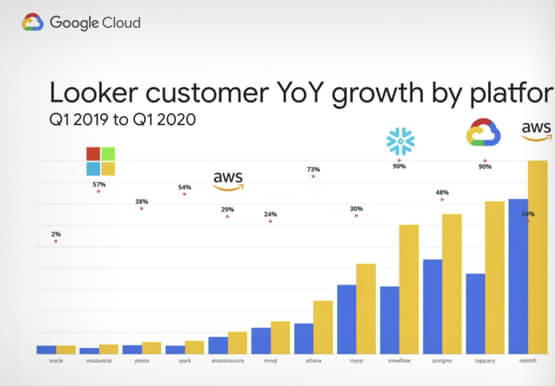
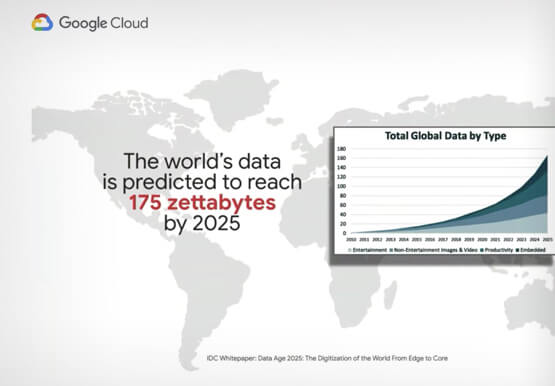
As technologies and workplace environments are quickly evolving, how people and businesses leverage data in their day-to-day workflow is also changing. Data leaders are an emerging force navigating and charting pathways forward towards new horizons for how people and organizations experience data. In this presentation, Pedro Arellano, Product Marketing Director,

Start-up Paves Way for More Inclusive Clinical Research: Honoring Black Founders of Acclinate with Google Cloud
Editor’s note: February is Black History Month—a time for us to come together to celebrate the diverse set of experiences, perspectives and identities that make up the Black experience. Over the next few weeks, we will highlight Black-led startups and how they use Google Cloud to grow their businesses. Today’s

How Digital Simulation of Physical Stores Helped e-Commerce Companies Replenish Stocks and Fulfil Online Orders at Scale in 2020
Editor’s note: We’re inviting partners from across our retail ecosystem to share stories, best practices, and tips and tricks on how they are helping retailers transform during a time that has seen tremendous change. The original version of this blog was published by Trax Retail in October 2021. Please enjoy this updated
