





Guide to Google’s Underwater Infrastructure
5665
Of your peers have already read this article.
1:00 Minutes
The most insightful time you'll spend today!
From data centers and cloud regions to subsea cables, Google is committed to connecting the world. Our investments in infrastructure aim to further improve our network—one of the world’s largest—which helps improve global connectivity, supporting users and Google Cloud customers. Our subsea cables play a starring role in this work, linking up cloud infrastructure that includes more than 100 network edge locations and over 7,500 edge caching nodes.
As it turns out, readers of this blog seem to find what happens under the sea just as fascinating as what’s going on in the cloud. Posts on our cables are consistently among our most popular, which is why we brought them together for you here so you can take a deeper dive (pun intended).
Here’s a list our most popular posts on our underwater infrastructure:
2021
- Hola, South America! Announcing the Firmina subsea cable
- This bears repeating: Introducing the Echo subsea cable
- The Dunant subsea cable, connecting the US and mainland Europe, is ready for service
2020
2019
- Introducing Equiano, a subsea cable from Portugal to South Africa
- A quick hop across the pond: Supercharging the Dunant subsea cable with SDM technology
- Curie subsea cable set to transmit to Chile, with a pit stop to Panama
2018
- Expanding our cloud network for a faster, more reliable experience between Australia and Southeast Asia
- Delivering increased connectivity with our first private trans-Atlantic subsea cable
2017
2016
- New undersea cable expands capacity for Google APAC customers and users
- Google Cloud customers run at the speed of light with new FASTER undersea pipe
- A journey to the bottom of the internet
Our cable systems provide the speed, capacity and reliability Google is known for worldwide, and at Google Cloud, our customers can make use of the same network infrastructure that powers Google’s own services. To learn more, you can view our network on a map, or read more about our network.
3893
Of your peers have already watched this video.
23:30 Minutes
The most insightful time you'll spend today!
How PwC Migrated 275,000+ Users to Google Workspace
PwC, a 150-year-old professional services firm, has deployed and measured the impact of G Suite on its network of firms in 158 countries to help change its culture and make digital mastery a competitive advantage.
In 2015, PwC embarked on a journey of cultural change by deploying G Suite* to drive collaboration, productivity, and innovation to better serve its clients. In late 2019, PwC concluded the implementation across 300,000+ G Suite licenses, 275,000+ users, ~670 OUs, and 150+ territories. It’s a transition that came in handy during the COVID-19 outbreak.
“We’re able to share files, suddenly, with even clients who don’t have G Suite. It was such a huge leap, real excitement in our network and real excitement with our clients. Even our clients notice, they said, boy, you guys are just continuing to work kind of as normal,” says Adrienne Schutte, the Global Change Director at PwC.
In this video, PwC will talk about the challenges on this five-year journey, lessons learned, and key change management strategies. Additionally, they will discuss how they are measuring the impact G Suite has made on their business from a behavioral standpoint, leading to business benefits.
*G Suite is now Google Workspace
How Google is Showing the Way to the Differently-abled: A Blind Program Manager’s Account

4246
Of your peers have already read this article.
3:30 Minutes
The most insightful time you'll spend today!
What does “accessibility” mean to businesses? It’s not just about making sure that your office or retail space is accessible to workers and customers who have mobility challenges, it’s also about making sure that your apps, digital tools and content are also more accessible to everyone.
Our product teams work every day to ensure that tools like G Suite have built-in accessibility features. As a Program Manager, I help create those features and use many of them myself, as I’m blind. I would like to give an overview of product accessibility features that have been available for some time, as well as some new ones.
Listen to content with help from screen readers.
A screen reader is a helpful tool for people who are blind or have low vision. It provides methods to interact and control applications and also converts content on screen into spoken text. With a screen reader and keyboard shortcuts, you can read, edit, and comment on files. Getting started is easy: In Google Docs, Slides, or Sheets, go to the Tools menu, and in “Accessibility settings,” check the “Turn on screen reader support” box. Learn how to turn on screen reader support in Docs.
G Suite supports several screen readers, including ChromeVox, Google’s own screen reader. ChromeVox is automatically built into Chrome devices, like Chromebooks. You just have to enable it. There are many other screen readers you can use with G Suite too; this support guide explains which screen readers work best with which web browsers.
Another way to listen to content is with Select-to-speak, a feature that reads content aloud to you using text-to speech (TTS) to verbalize highlighted content. To try it out, highlight text and activate the select-to-speak button. An example of a select-to-speak tool is the one built into ChromeOS.
See a summary of changes to your documents.
To make it easier for people to keep track of collaborators’ contributions in Google Docs (without having to actively watch every single change), we recently added a feature called Live Edits. Helpful if you use a screen reader or magnification, Live Edits periodically summarizes changes made to a document by collaborators within the sidebar. Learn how to comment and collaborate in Docs using a screen reader.
And for people who are sensitive to visual crowding, we also introduced eight different Lexend font families that have varied widths and spacing to accommodate different reading speeds. Read more details about these font options.
Use voice typing to “write” by speaking.
Voice typing is a powerful productivity tool for everyone, including those who do not use a keyboard. It’s especially useful for people with low vision or with motor disabilities that may prevent them from using keyboards, mice or trackpads. When you speak into the computer’s microphone, voice typing uses artificial intelligence (AI) to convert your voice into text. In Docs, you can even use voice commands to select and edit text—for example, bolding words or cutting and pasting text.
Active Assist Expands Globally: Unleashing Cloud Optimization Insights Worldwide

1286
Of your peers have already read this article.
3:30 Minutes
The most insightful time you'll spend today!
Active Assist provides insights and recommendations to help Google Cloud customers proactively optimize their cloud environments for cost, security, performance, and sustainability. If you’re like most customers, you’ve likely encountered these insights and recommendations in the console — either in the Recommendations Hub or embedded on a resource page, like IAM or the VM list pages. (Note that for the rest of this post, we’ll use the word “recommendations” to mean “insights and recommendations.”)
We heard from customers who love recommendations that it should be easier to discover and work with these valuable suggestions across an entire organization, so last year we launched the Recommendations BigQuery export feature to Preview. This allows you to automatically export the recommendations to a BigQuery dataset, which you can then investigate with tools like DataStudio or Looker, and integrate with your company’s existing monitoring solutions and workflows.
Many of you have told us how powerful this feature is, so we’ve been working hard on improvements to make it even more useful. We’re happy to announce that BQ Export 1.0 is now in GA, and that BQ Export 2.0 is in Preview, with new support for Billing Account-level recommendations and cost optimization recommendations that include discount information. This post will cover what’s new with Active Assist BQ Export, as well as a couple other new features of Active Assist.
New features to Active Assist BigQuery Export
Before we dive into the details, if you’re new to Recommendations BQ Export check out our handy getting started guide. It covers the permissions you’ll need and how to set up the export, including instructions for using a service account. It also includes some sample queries and instructions for interacting with the data using Google Sheets. You may also want to check out our prior blog post showing how to optimize your cloud spend with BigQuery and Looker.
Now, on to what’s new!
1. Non-project scoped recommendations
You can now see non-project scoped recommendations, such as billing account, organization, and folder-level recommendations in your export to BigQuery. This ensures that in your export, you are able to see the full portfolio of recommendations that are available to you.
2. Custom contract Pricing
If you have any applicable custom contract pricing for your company, your cost-related recommendations now take those into account (based on your historical costs) in the cost saving calculation when you export them to BigQuery. This will ensure that you have the most accurate cost savings data we have for you and your organization to help you make the best judgment and prioritization when choosing to adopt recommendations. However, you must have the correct permissions first in order to see the custom contract pricing. If the user executing the export to BigQuery does not have the correct permissions, you may continue to see list pricing in your estimated savings. Also, note that the console UI and the Recommender API already have this support.
3. Export now available globally
Customers outside of the US can now set up an export of recommendations to a BigQuery dataset.
Improvements to Active Assist discoverability and usability
1. Global Recommender Viewer role: You can now add the global Recommender Viewer role, which gives you view access to all insights and recommendations available to you, simplifying permission management for new recommenders. Newly launched recommendations will also automatically be added as they become generally available.
2. Dismiss recommendations via Recommender API: You can now directly dismiss recommendations via our API, allowing you to focus on the recommendations you care about and work more efficiently.
3. Shareable links: Another feature that quietly launched recently is the availability of shareable URLs that link to recommendation details in the console. You can access these links in the UI from the upper right of the details panel of any recommendation.
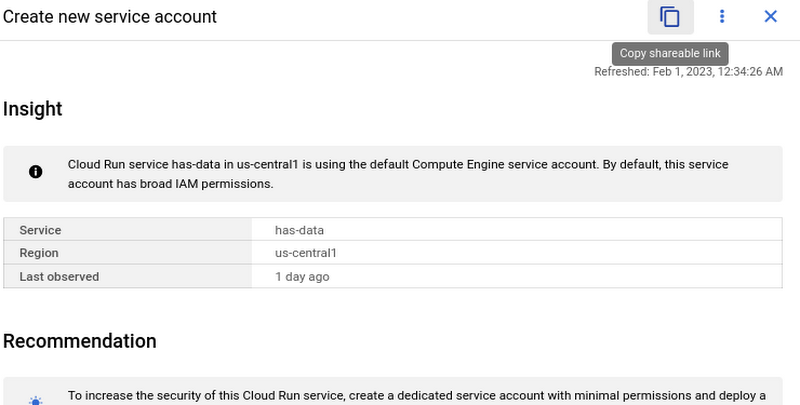
However, these links become even more powerful when combined with Recommendations BigQuery Export. The URLs all have a standard format. This means that within the BigQuery export tables you can easily calculate a new column containing these links using an expression like:
“https://console.cloud.google.com/home/recommendations/view-link/” +
name +
“?project=” +
cloud_entity_id
This example is for project level recommendations (where cloud_entity_type = PROJECT_NUMBER).
For cloud_entity_type = FOLDER, use:
“https://console.cloud.google.com/home/recommendations/view-link/” +
name +
“?folder=” +
cloud_entity_id
For cloud_entity_type = ORGANIZATION, use
“https://console.cloud.google.com/home/recommendations/view-link/” +
name +
“?organizationId=” +
cloud_entity_id
These links can then be embedded in your reports and dashboards, or used by other BigQuery clients.
As a reminder, if you’re interested in setting up reports or dashboards using Recommendations BigQuery Export, take a look at this previous blog post for some great ideas, or you can reference our getting started guide. If you have any feedback, please feel free to reach out to active-assist-feedback@google.com.
In sync for better efficiency: Effective collaboration strategies for distributed workforces

3185
Of your peers have already read this article.
2:30 Minutes
The most insightful time you'll spend today!
Workplace collaboration continues to evolve as hybrid work expands its footprint. While both “same-time” and “staggered-time” (or asynchronous) collaboration modes each have their place in the hybrid work environment, organizations and teams sometimes overuse one mode over another. That’s probably because in-person meetings or collaborating in real time have been the default for many organizations, leading to a “same-time” bias, even as new tools make working across time zones and locations seamless. Ultimately, the key for making collaboration scalable and to support employee wellbeing is choosing the right method and tool for the task at hand. With that in mind, here are some ways to get the most out of same-time and staggered-time collaboration in your organization.
Making same-time collaboration more valuable
Historically, many organizations have valued same-time interactions for the fast, direct exchange of information and feedback. They also bring teams together and build human connections. While all these outcomes are powerful and important, same-time collaboration also has some drawbacks — especially in a hybrid environment.
First, same-time interactions can be difficult to arrange. Coordinating schedules requires advanced planning, especially when employees are distributed across time zones or working outside of traditional business hours. Second, back-to-back scheduling can contribute to meeting fatigue. In our recently commissioned global hybrid work survey with Economist Impact, 72% of respondents acknowledged that virtual meetings improve inclusion and participation. At the same time, 68% said there are too many virtual meetings in general, suggesting that even though employees value same-time collaboration, they want it in moderation.

To address these challenges, organizations should consider the collaboration scenarios in which same-time interactions can make the greatest impact. It’s particularly useful when consensus or immediate action is needed, as in briefings, decision-making, and crisis management.
For effective same-time collaboration in a hybrid environment, your employees need tools that help them coordinate real-time interactions and minimize time spent switching apps and context. With Google Workspace, teams can create and access a shared agenda or Google Doc inside a Google Calendar invite, helping align expectations and goals before, during, and after scheduled same-time work sessions. And, the more integrated your collaboration tools are, the easier it is for employees to get right to work when inspiration strikes or a quick decision is needed. For example, team members can initiate spontaneous work sessions by starting a Google Meet directly from Docs, Sheets, or Slides.
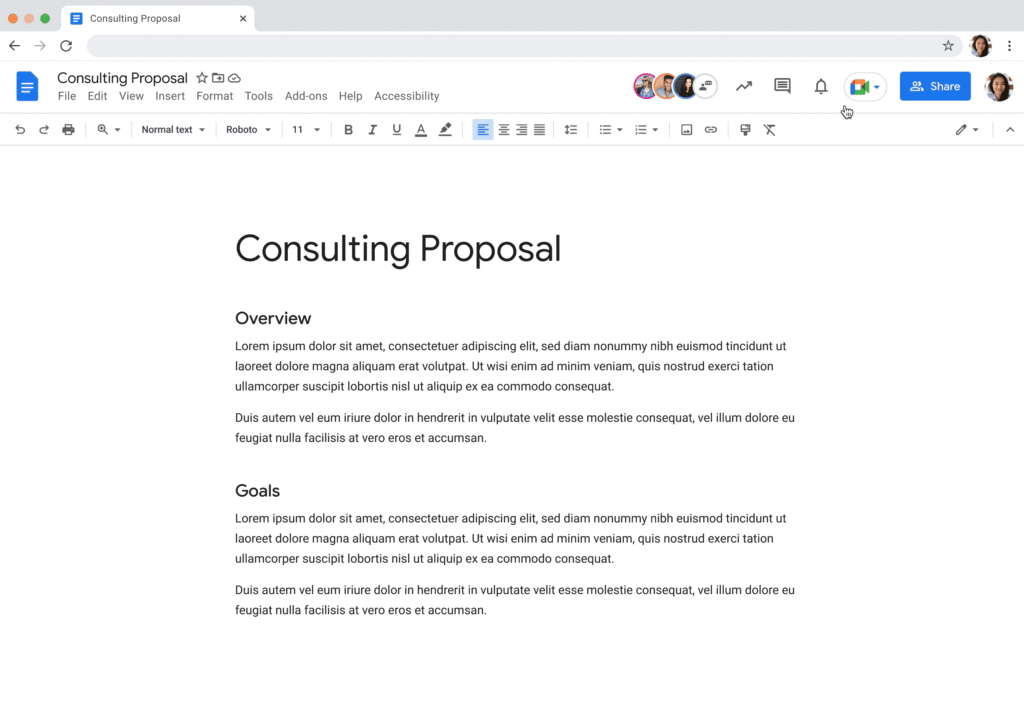
Additionally, consider how you can bring real-world collaboration activities into virtual environments to enhance same-time collaboration for distributed teams. For instance, digital whiteboard tools, like Jamboard and Miro in Google Meet, allow people to brainstorm, ideate, and problem-solve in real time from anywhere. Interactive solutions like these empower employees to work together in new ways.
Expanding what’s possible with staggered-time collaboration
Widespread adoption of hybrid work has prompted organizations to turn more frequently to staggered-time collaboration — where team members are free to share and respond to information in their own time. A key benefit of staggered collaboration is improving the experience and wellbeing of employees — specifically, by promoting participation across the team and support for flexible work habits. Allowing team members to engage when they’re most productive, or when it doesn’t interfere with their scheduled focus time, supports their wellbeing. It can also help employees feel heard, valued, and empowered. Staggered-time collaboration can also give team members who may feel uncomfortable or vulnerable speaking up in real time, or who just need time to think about their feedback, a more inviting way to share their perspectives.
Staggered-time collaboration can enhance a range of collaboration scenarios, including assigning tasks and action items, knowledge- and resource-sharing, brainstorming, and giving feedback. To make these interactions successful, employees need secure, intuitive tools that give them the information they need to do their jobs from anywhere, at any time. For example, in Spaces, team members can initiate and take part in group chat threads devoted to project- and topic-based discussions, as well as access files and tasks, to stay in the loop whenever they’re able to participate. For people working on a task or project at varied times, creating a dynamic, single source of truth makes all the difference.
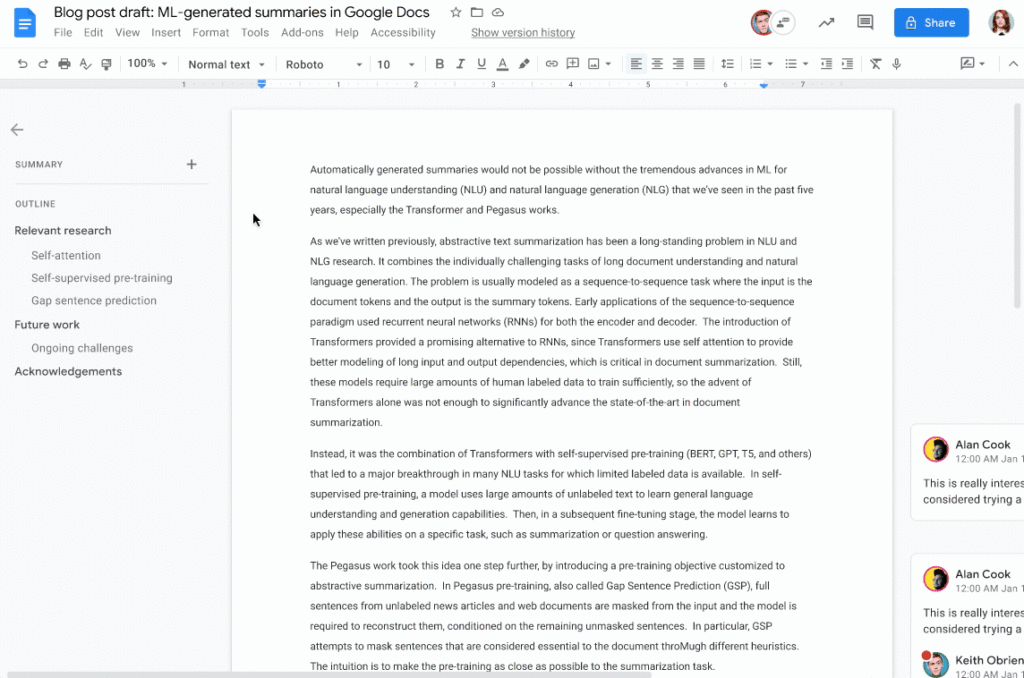
When collaborating on shared documents, a feature like smart canvas enables teammates to assign tasks, build checklists, and share files using @-mentions for easy information access. Meanwhile, automated, built-in summaries in Docs help the team get up to speed without losing focus. Features like these help everyone stay on the same page (literally), even if they’re contributing to a project at different times.
Flexibility and collaboration are not mutually exclusive
Helping people know which tasks call for real-time collaboration and which tasks are better done on their own time is critical for sustaining productivity and wellbeing in a hybrid work world. Employees who are empowered to work in ways that complement their needs, preferences, and schedules typically reward their organization for that flexibility. As Holger Reisinger, Paul Sephton, and Dane Fetterer wrote for the Harvard Business Review, “When leaders give employees the freedom to choose where and when they work, it signals they trust them to do the job they were hired to do. The data shows that that trust is then paid back…at a very high rate, building a tight-knit culture of inclusivity and belonging.”
When you create team norms around same-time and staggered-time collaboration, you can help your employees stay productive and connected — to each other and the broader organization. And by giving them tools that support seamless, secure collaboration experiences from anywhere, the impact on productivity, employee wellbeing, and morale can be transformational.
4205
Of your peers have already watched this video.
18:40 Minutes
The most insightful time you'll spend today!
Enabling a Remote Workforce with Chrome Enterprise
The recent COVID-19 pandemic has mandated that organizations take unprecedented efforts to enable their employees to work remotely. This recent Gartner survey indicated that 88% of organizations have encouraged or required employees to work from home.
Even before this year’s events, remote working has been a growing consideration for employees and employers alike. In fact, since 2005, working from home has grown by 173% amongst the non-self-employed population. And the desire to work remotely continues to increase.
As more businesses consider how to enable their teams to work remotely, business and IT leaders are increasingly thinking about how to best support a distributed workforce.
In this video, learn how Chrome Enterprise can help keep your employees productive and data secure while allowing IT to remotely manage devices and find out how other companies are doing it too.
More Relevant Stories for Your Company

Two Ways to Deploy SAP HANA System on Google Cloud
Many of the world’s leading companies run on SAP—and deploying it on Google Cloud extends the benefits of SAP even further. Migrating your current SAP S/4HANA deployment to Google Cloud—whether it resides on your company’s on-premises servers or another cloud service—provides your organization with a flexible virtualized architecture that lets

Lending DocAI Shortens Borrowers’ Journey on Roostify
The home lending journey entails processing an immense number of documents daily from hundreds of thousands of borrowers. Currently, home lending document processing relies on some outdated digital models and a high dependency on manual labor, resulting in slow processing times and higher origination costs. Scaling a business that sorts

Reactive Programming on Google Maps Platform: Watch Video to Learn
The Google Maps Platform Android SDK supports extensions for reactive programming, which helps you write code to handle asynchronous operations. Write reactive and responsive mapping applications with Google Maps Platform In mobile apps, asynchronous events can happen at any point in time: user touch events, waiting for network calls to complete, or

Go Green with Google’s Latest Tool and Pick the Most Sustainable Cloud Region
As a Google Cloud customer, your carbon footprint is already carbon neutral: Google first achieved carbon neutrality in 2007, and has been purchasing enough solar and wind energy to match 100% of its global electricity consumption since 2017. Now, Google is targeting a new sustainability goal: operating on carbon-free energy (CFE) 24/7,
